
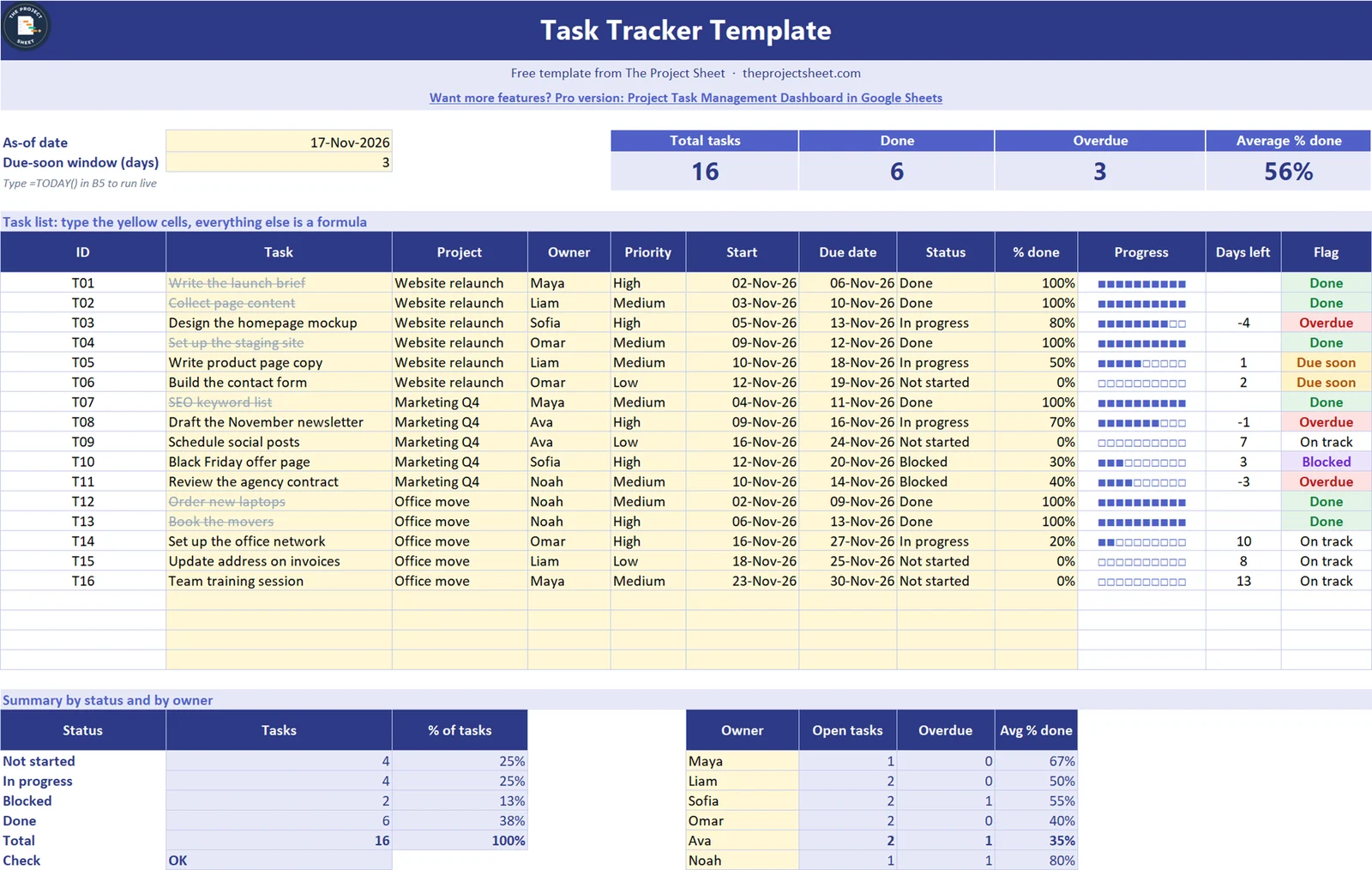
A task tracker in Google Sheets is one shared list where every task has an owner, a due date and a status, and a few formulas flag what is late, what is due soon and what is blocked. In the free template below, 16 sample tasks across three projects show 6 done, 3 overdue and an average of 56% complete on 17 November 2026.
Free download
Task Tracker Template (.xlsx, also opens in Google Sheets)
Working formulas, sample data and a How to use sheet. Opens in Excel, or import it into Google Sheets.
Google Sheets version
Task Tracker Template for Google Sheets
Click the button to save your own copy to Google Drive. It has the same tasks, formulas, drop-downs and colors as the Excel file above, and nothing to install.
Why track tasks in Google Sheets
Most small teams do not need a paid task app. They need one list that everyone can open, that shows who owns what and that turns red when something slips. Google Sheets does that well, because the file lives in the browser, several people can edit it at once and every change is saved in the version history.
A tracker also beats a chat thread. In a thread, a task agreed on Monday is gone by Thursday. In a sheet, it sits on its own row with a date next to it until someone marks it done. If your work is a single personal list, the lighter to do list template may be enough. For a team with deadlines, use the tracker.
What is inside the free task tracker template
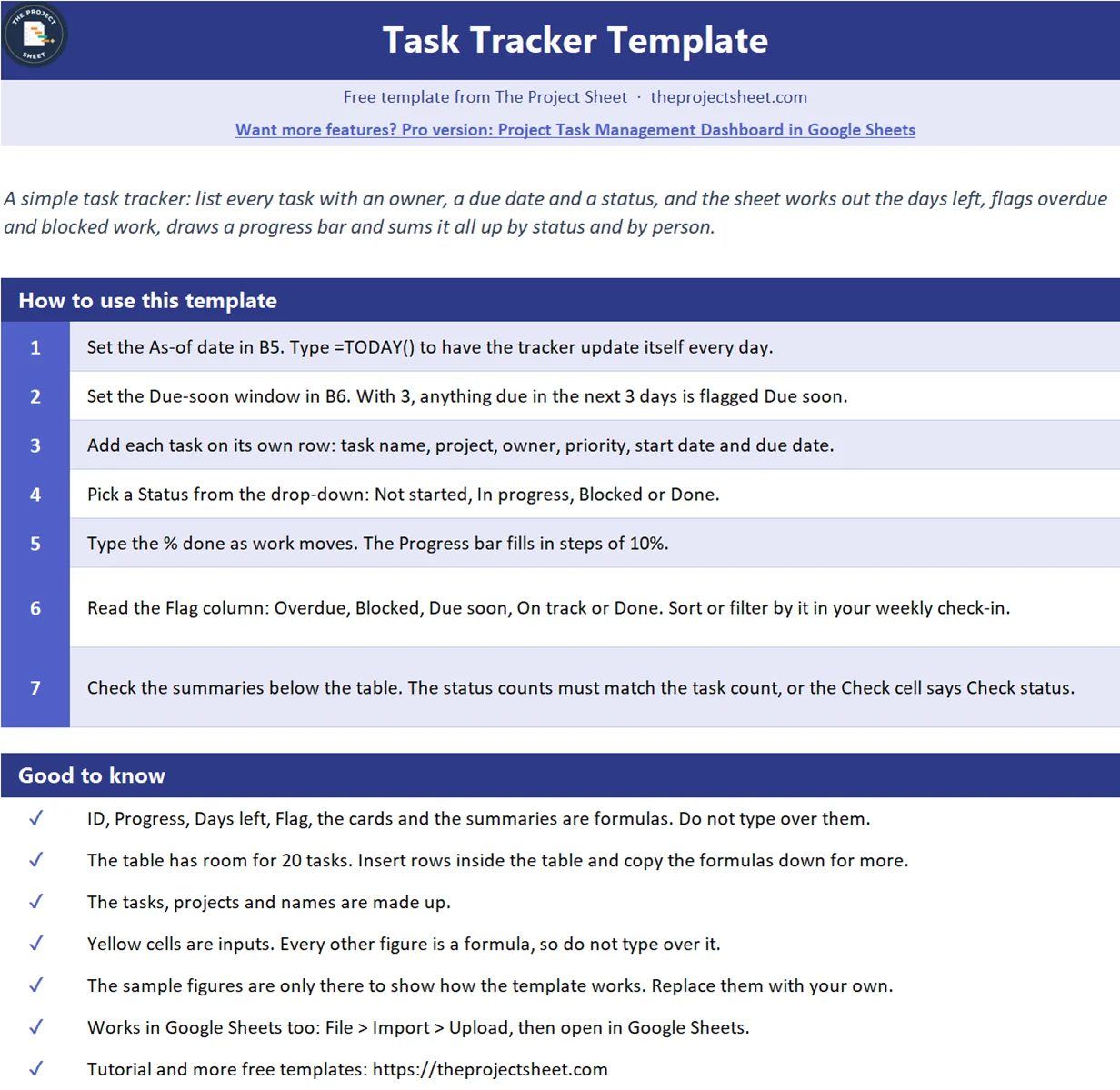
The file has a How to use tab and a Tasks tab. Four cards at the top show total tasks, tasks done, overdue tasks and the average percent done. The task list holds 20 rows with ID, task, project, owner, priority, start date, due date, status, percent done, a progress bar, days left and a flag. Under the list sit two summaries: tasks by status and open work by owner, with a check cell.
The sample tasks are made up. They cover a website relaunch, a marketing quarter and an office move, with six people. The as-of date is 17 November 2026 and the due-soon window is 3 days, both in the yellow cells at the top.
Who this task tracker is for
- A team lead who assigns work to four to ten people and wants one place to check progress.
- A freelancer or agency juggling several client projects with different due dates.
- Anyone moving off sticky notes who wants a free tracker before paying for software.
How to build the task tracker in Google Sheets step by step
The two inputs are the as-of date in B5 and the due-soon window in B6. The task list starts in row 11. Column B holds the task, C the project, D the owner, E the priority, F the start date, G the due date, H the status and I the percent done.
Step 1: Add drop-downs for status and priority
Select H11:H30, open Data, then Data validation, and choose Dropdown. Add four options: Not started, In progress, Blocked and Done. Do the same for priority in E11:E30 with High, Medium and Low. Drop-downs stop typing errors such as “done ” with a trailing space, which would break every count later on.
Step 2: Number the tasks automatically
Each task gets an ID only when the row has a task name. In A11:
=IF(B11="","","T"&TEXT(ROW()-10,"00"))
Row 11 becomes T01, row 12 becomes T02 and so on. Empty rows stay blank, so the list does not fill up with IDs for tasks that do not exist yet.
Step 3: Count the days left
Days left is the due date minus the as-of date. Finished tasks should show nothing. In K11:
=IF(OR(G11="",H11="Done"),"",G11-$B$5)
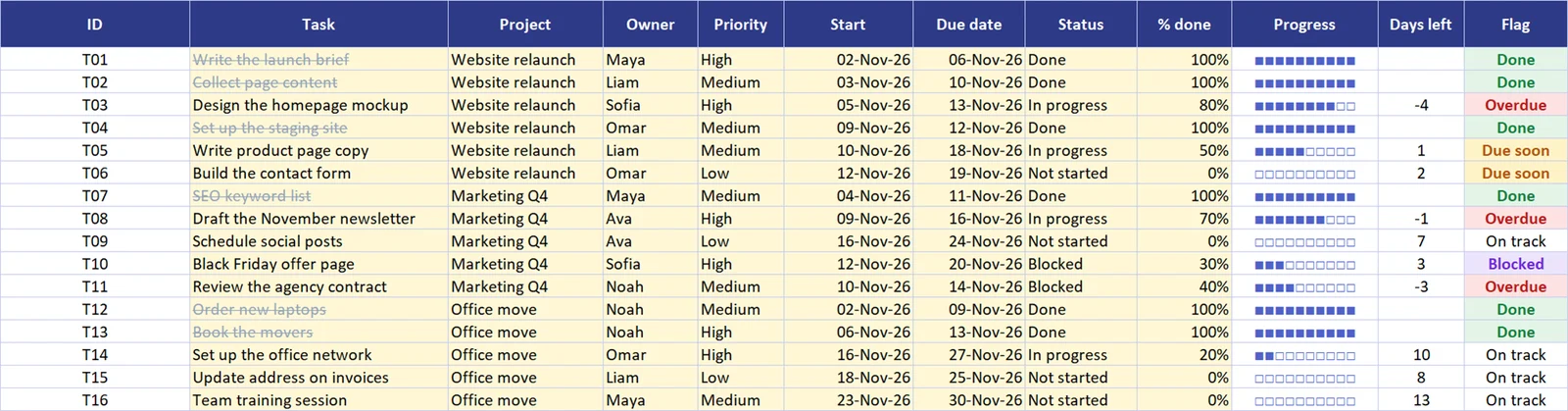
T03, Design the homepage mockup, was due on 13 November, so it shows -4. A negative number means the task is late by that many days. To keep the sheet live, type =TODAY() in B5 and the count moves forward each morning.
Step 4: Flag each task
The flag turns the dates and the status into one word you can scan or filter. In L11:
=IF(B11="","",IF(H11="Done","Done",IF(G11<$B$5,"Overdue",IF(H11="Blocked","Blocked",IF(G11-$B$5<=$B$6,"Due soon","On track")))))
The order of the tests decides the result. Done wins first. A task past its due date is Overdue even if it is also blocked, because a missed date is the bigger problem. That is why T11, Review the agency contract, shows Overdue while T10, Black Friday offer page, shows Blocked: T10 is not due until 20 November. Anything due within the window in B6 is Due soon, and the rest is On track.
Step 5: Color the flags with conditional formatting
Select L11:L30, open Format, then Conditional formatting. Add a rule with Text is exactly Overdue and a red fill, then repeat for Due soon in amber, Blocked in purple and Done in green. Add one more rule on B11:B30 with Custom formula is:
=$H11="Done"
Set it to grey strikethrough text. Finished tasks fade out and the open work stands out.
Step 6: Draw a progress bar without a chart
The progress column repeats a filled square for every 10% done and an empty square for the rest. In J11:
=IF(B11="","",REPT("■",ROUND(N(I11)*10,0))&REPT("□",10-ROUND(N(I11)*10,0)))
T03 is 80% done, so it shows eight filled squares and two empty ones. REPT works the same in Google Sheets and Excel, which is why the bar survives a download. In Google Sheets only, you could use =SPARKLINE(I11,{"charttype","bar";"max",1}) for a solid bar instead.
Step 7: Summarize by status and by owner
The cards and summaries use COUNTIF and COUNTIFS. Overdue tasks in the top card:
=COUNTIF(L11:L30,"Overdue")
Open tasks per person in G34, where F34 holds the name:
=COUNTIFS($D$11:$D$30,F34,$H$11:$H$30,"<>Done")
On the sample date the status summary reads 4 not started, 4 in progress, 2 blocked and 6 done, which adds up to the 16 tasks, so the check cell says OK. The owner table shows Sofia with 2 open tasks and 1 overdue, so that is the first conversation in the next stand-up.
How to run a weekly check-in from the tracker
Open the sheet, set the as-of date to today and go down the Flag column in this order. Overdue first: agree a new date or cut the scope. Blocked next: name who can remove the blocker. Then Due soon: confirm the owner has what they need. On track tasks need no talk at all, which keeps the meeting short.
In Google Sheets you can also create a filter view from Data, then Filter views, so each person sees only their own rows without changing the view for anyone else. If a project grows past a simple list, move the phases into the project management template, or show the same tasks as columns on a Kanban board.
Common mistakes
- Typing statuses by hand. A typo such as “In Progress ” is a new status to COUNTIF. Use the drop-down.
- Tasks without an owner. A task that belongs to everyone belongs to no one. Fill the owner on every row.
- Marking Done but leaving 50%. Set percent done to 100% when the status is Done, or the average understates progress.
- A fixed as-of date. A typed date freezes every flag. Use
=TODAY()for live tracking. - Deleting finished tasks. Keep them. The strikethrough hides them visually and they remain a record of what shipped.
- Tasks that are really projects. “Launch the website” cannot be finished in a week. Break it into tasks one person can close.
Adapt the template to your team
Replace the sample names in the owner summary with your own team, then clear the sample tasks and add yours. To add a status such as Waiting on client, add it to the drop-down and to the status summary list. For more than 20 tasks, insert rows inside the list and copy the formulas down. Share the Google Sheets copy with your team as editors, and protect the formula columns from Data, then Protect sheets and ranges.
Want more than the free file?
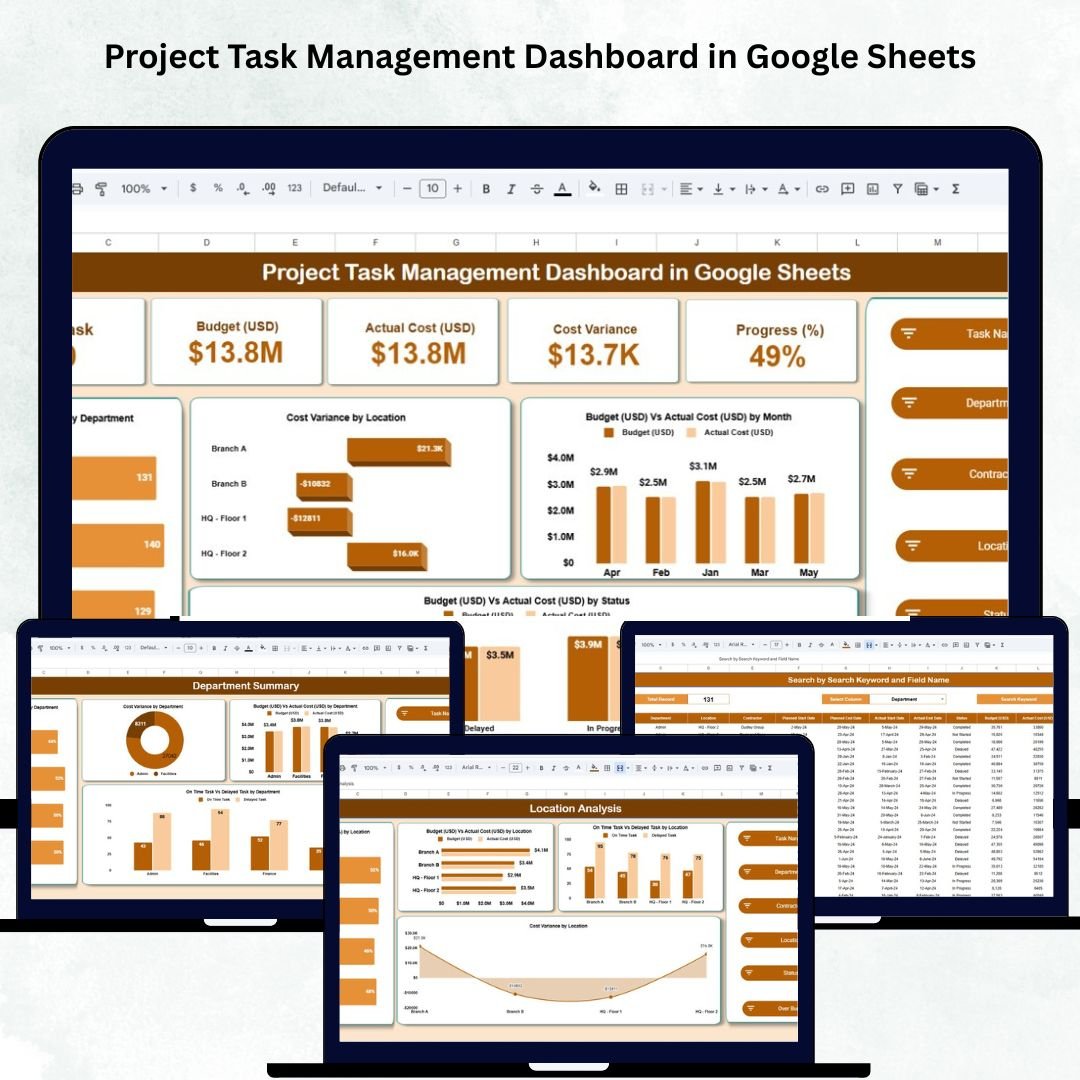
Project Task Management Dashboard in Google Sheets
A ready Google Sheets dashboard for many projects: task counts, budget vs actual, cost variance and progress by department, contractor and location, with a search tab.
Your next step: make your copy, type your team’s open tasks and see how many come up Overdue.
Frequently asked questions
How do I make a task tracker in Google Sheets?
List each task on its own row with an owner, a due date and a status from a drop-down. Add formulas for days left and a flag such as Overdue or Due soon, then color the flags with conditional formatting and count them with COUNTIF.
Is there a free task tracker template for Google Sheets?
Yes. The template on this page is free. Click Make a copy in Google Sheets to save it to your Drive, or download the Excel file.
How do I highlight overdue tasks in Google Sheets?
Compare the due date with TODAY() in a formula that returns Overdue when the date has passed and the task is not done, then add a conditional formatting rule that colors the word Overdue red.
Can several people use the same task tracker at once?
Yes. Share the Google Sheets copy with your team as editors. Everyone sees changes live, and filter views let each person see only their own tasks.
How do I add a progress bar in Google Sheets?
Use REPT to repeat a filled character for every 10% done, or use SPARKLINE with the bar chart type and a max of 1 for a solid bar inside the cell.
Free download
Task Tracker Template (.xlsx, also opens in Google Sheets)
Working formulas, sample data and a How to use sheet. Opens in Excel, or import it into Google Sheets.
Want the finished version?
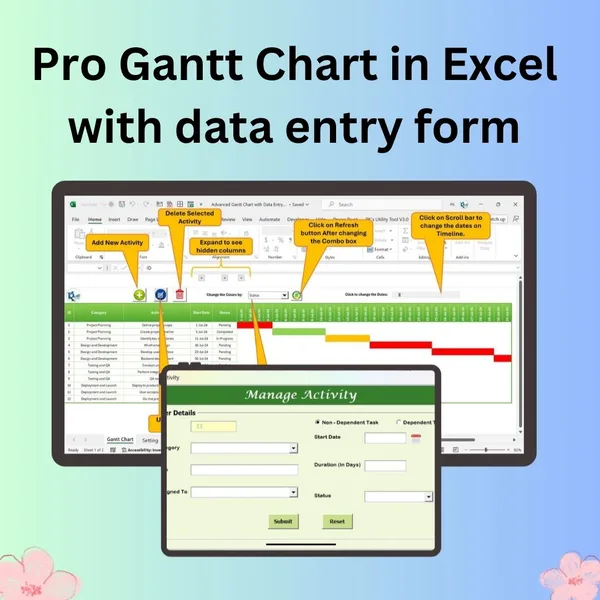
Pro Gantt Chart in Excel with Data Entry Form
Add and update activities through a form while the Gantt chart updates itself.
View the pro template
PK is the founder of PK: An Excel Expert and NextGenTemplates.com and a corporate trainer in Excel, VBA and Power BI. Since 2020 he and his team have built Excel and Google Sheets tutorials and templates for business users, including many project management tools.