
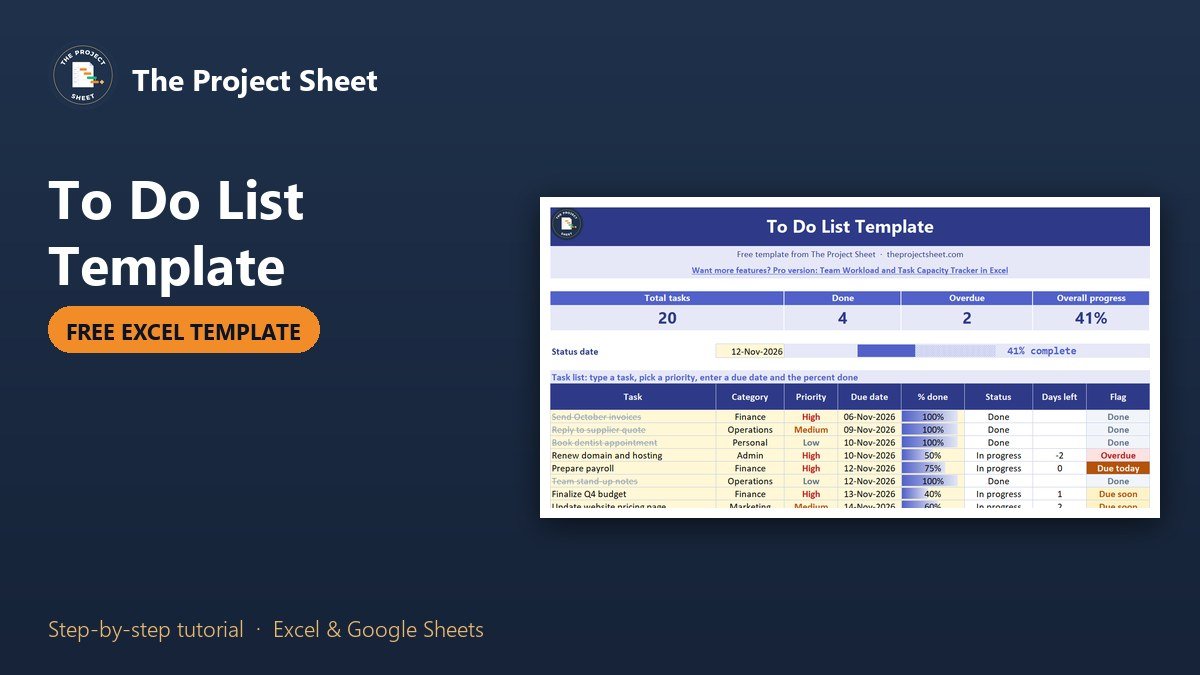
A good to do list shows what you have to do, how urgent it is and how far along it is. To build one in Excel, make a task table with a priority, a due date and a percent done, then add formulas that turn those into a status, the days left and an overdue flag. A progress bar in the percent column and one across the top show where you stand at a glance. The free template below does all of that.
Free download
To Do List Template practice file (.xlsx)
Working formulas, sample data and a How to use sheet. Opens in Excel, or import it into Google Sheets.
Why a plain list is not enough
A written list tells you what exists, but not what to do first. Two things go wrong. Urgent tasks hide among easy ones, so the day fills up with quick wins. And a task that is half done looks the same as one not started, so you cannot tell how much work is really left.
A to do list template in Excel fixes both with three columns: priority, due date and percent done. Once they exist, the sheet can work out the rest by itself.
What is inside the free to do list template
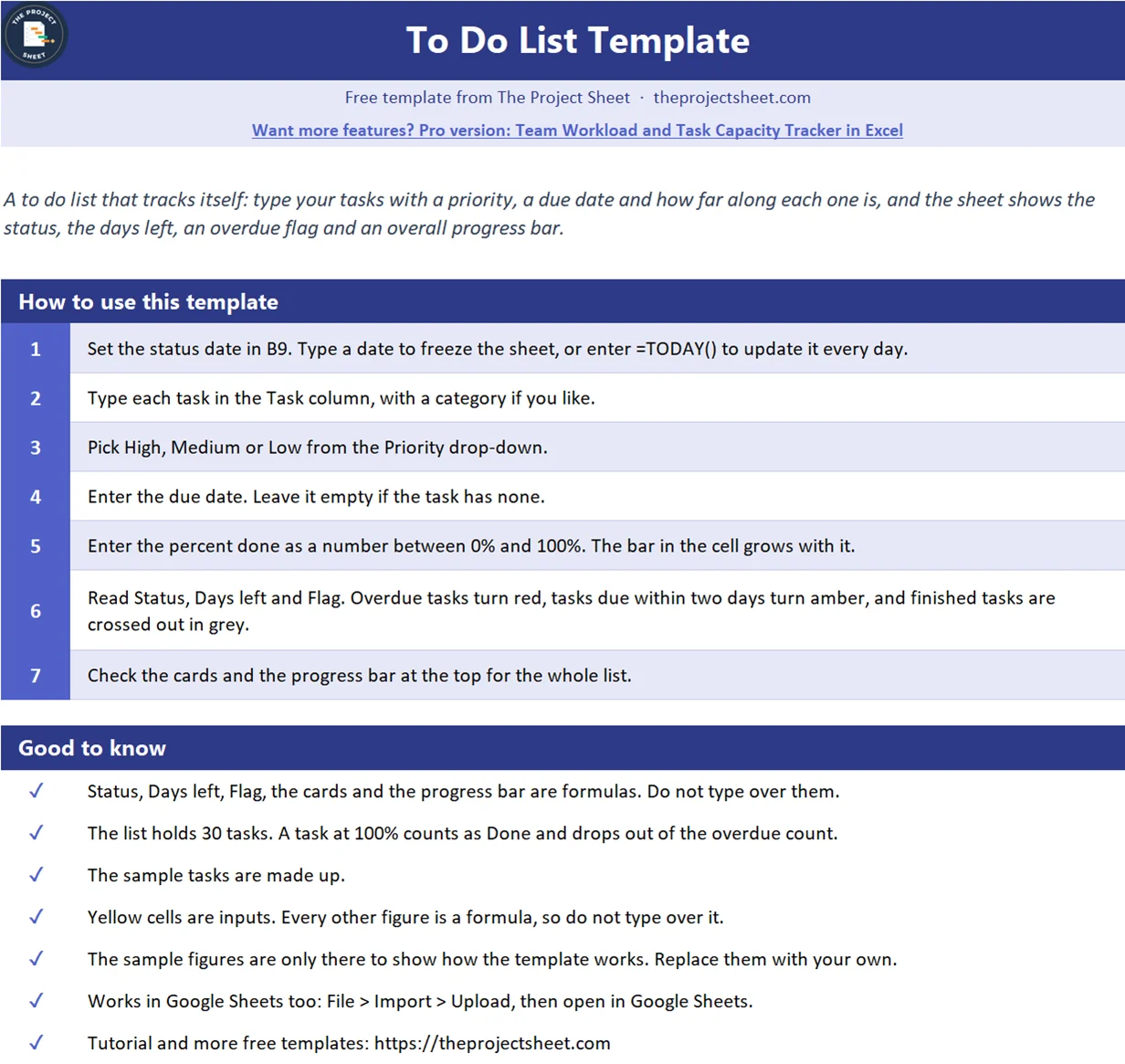
The workbook has two sheets: How to use and To Do List. The list sheet has four summary cards at the top, an overall progress bar and a table for 30 tasks. It has no macros and works in Google Sheets too. Yellow cells are inputs and everything else is a formula.
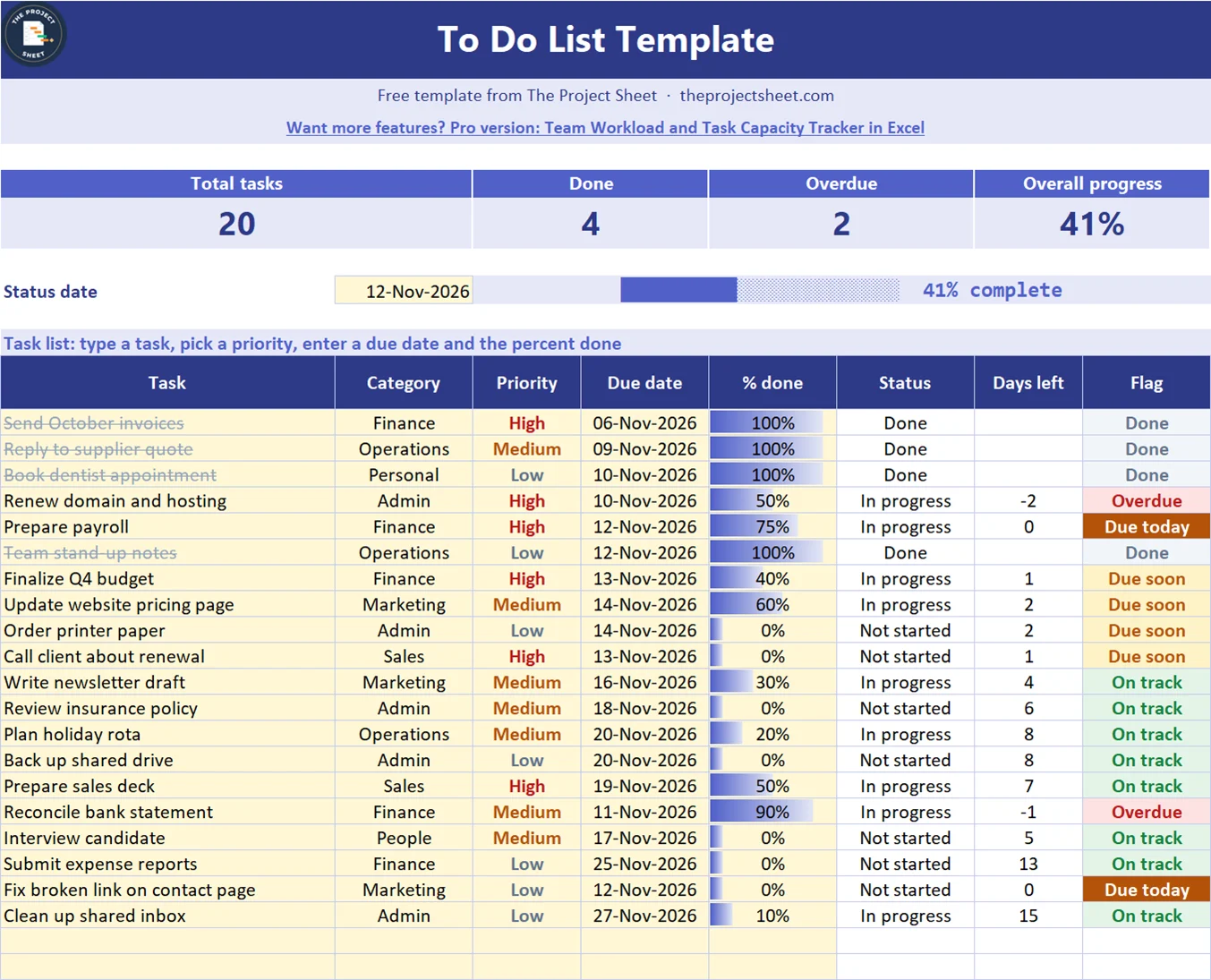
The sample is a made-up small business week with 20 tasks and a status date of November 12, 2026. It shows 4 tasks done, 9 in progress and 7 not started. Overall progress is 41%. Two tasks are overdue, two are due today and four are due within two days.
Who this to do list template is for
- A business owner juggling invoices, calls and admin in one week.
- A team lead who wants a simple task list before choosing a project tool.
- Anyone whose paper list keeps growing without showing progress.
How to build the to do list template in Excel
The table starts at row 12 with the headers Task, Category, Priority, Due date, % done, Status, Days left and Flag. Tasks run from row 13 to row 42. The formulas below show row 13, so copy them down.
Step 1: Set up the table and the drop-downs
Type the headers in row 12 and enter your tasks from row 13. Select the Priority column and add data validation with the list High, Medium, Low, so nobody types a word the sheet does not know. Select the % done column and add a decimal validation between 0 and 1, then format it as a percentage. A task at 50% is stored as 0.5.
Step 2: Add the status date
Put the date the sheet should treat as today in B9. The sample uses a typed date so the snapshots stay stable. Enter =TODAY() if you want the sheet to update every morning.
Step 3: Work out the status
The status comes from the percent done. In F13:
=IF(A13="","",IF(E13>=1,"Done",IF(E13>0,"In progress","Not started")))
A task at 100% is Done, anything above zero is In progress and the rest is Not started. The first test of A13="" keeps empty rows blank, so the table looks clean until you add a task.
Step 4: Count the days left
In G13, subtract the status date from the due date:
=IF(OR(A13="",D13="",E13>=1),"",D13-$B$9)
The cell stays blank when the task has no name, no date or is already done. A negative number means the task is late. In the sample, Renew domain and hosting shows -2 and Reconcile bank statement shows -1.
Step 5: Set the flag
The flag turns the days left into a word you can scan. In H13:
=IF(A13="","",IF(E13>=1,"Done",IF(D13="","No date",IF(D13<$B$9,"Overdue",IF(D13=$B$9,"Due today",IF(D13-$B$9<=2,"Due soon","On track"))))))
The tests run in order. Done tasks come first, so they never show as overdue. A due date before the status date is Overdue, the same date is Due today, and two days or fewer is Due soon. Everything else is On track. Putting Done first matters, because a finished task with an old due date would otherwise keep showing red.
Step 6: Colour the flag and the priority
Select the Flag column and add conditional formatting rules that compare each cell with the words above. Overdue gets a red fill, Due today a dark orange fill with white text, Due soon amber, On track green and Done grey. Do the same for Priority, with High in red, Medium in amber and Low in grey. Colour makes the list readable in a second.

Step 7: Add the progress bars
Select the % done column and choose Conditional Formatting, then Data Bars. Set the minimum to the number 0 and the maximum to the number 1, so a task at 50% fills exactly half the cell. If you leave the bar on automatic, Excel scales it to the largest value in the column and every bar looks wrong.
For finished tasks, add one more rule on the Task column with the formula =$E13>=1 and set the font to grey with a strikethrough. Done items fade out and the open ones stand out.
Step 8: Build the summary cards and the overall bar
The cards count the list. The four formulas are:
=COUNTA(A13:A42)
=COUNTIF(F13:F42,"Done")
=COUNTIF(H13:H42,"Overdue")
=IFERROR(SUM(E13:E42)/COUNTA(A13:A42),0)
With 20 tasks, 4 done and 2 overdue, the cards show 20, 4 and 2. Overall progress adds up the percent done of every task and divides by the number of tasks. It comes to 41%, since the done tasks count as 4 and the half-finished ones make up the rest.
The progress bar next to the status date uses REPT to repeat a block character. If your progress figure is in a cell, the bar is:
=REPT("█",ROUND(B2*24,0))&REPT("░",24-ROUND(B2*24,0))
Here B2 stands for the cell that holds your overall progress. The first part draws a block for every 1/24 of progress and the second part fills the rest with light blocks. At 41% that is 10 filled blocks and 14 empty ones.
How to use the list every day
Start the day with the Flag column. Fix every Overdue row first, either by finishing the task or by moving the due date to a real one. Then look at Due today, then Due soon. Only after that choose from the High priority tasks that are still On track.
Update the % done at the end of the day. It takes a minute, and it keeps the overall bar honest. If one task stays at 50% for a week, it is blocked and needs a decision, not more time.
If your list grows beyond what one person can do, move to a board. The kanban board in Excel shows the same work in status columns. For a full plan with phases, owners and dates, use the project management template. To see how much each person has on their plate, the Team Workload and Task Capacity Tracker in Excel covers that.
Common mistakes
- Typing 50 instead of 50%. The sheet reads percent done as a number from 0 to 1. Format the column as a percentage and type 50%.
- Leaving the data bar on automatic. Set the minimum to 0 and the maximum to 1, or the bars will not match the numbers.
- Testing Done last in the flag formula. A finished task with an old date will still show as Overdue.
- Leaving out due dates. A task with no date can never be late, so it can sit for months. The flag shows No date as a warning.
- Setting everything to High. If every task is High, priority tells you nothing. Keep High for the few that matter this week.
- Overwriting the formulas. Status, Days left and Flag are formulas. Change the percent done and the dates instead.
Where to go from here
A to do list handles one person or a small team. When work needs phases, owners and dates, start with the project management template. When you want to see the work move between stages, use the kanban board in Excel. For hours spent, use the timesheet template. New to the site? Read start here.
Want more than the free file?
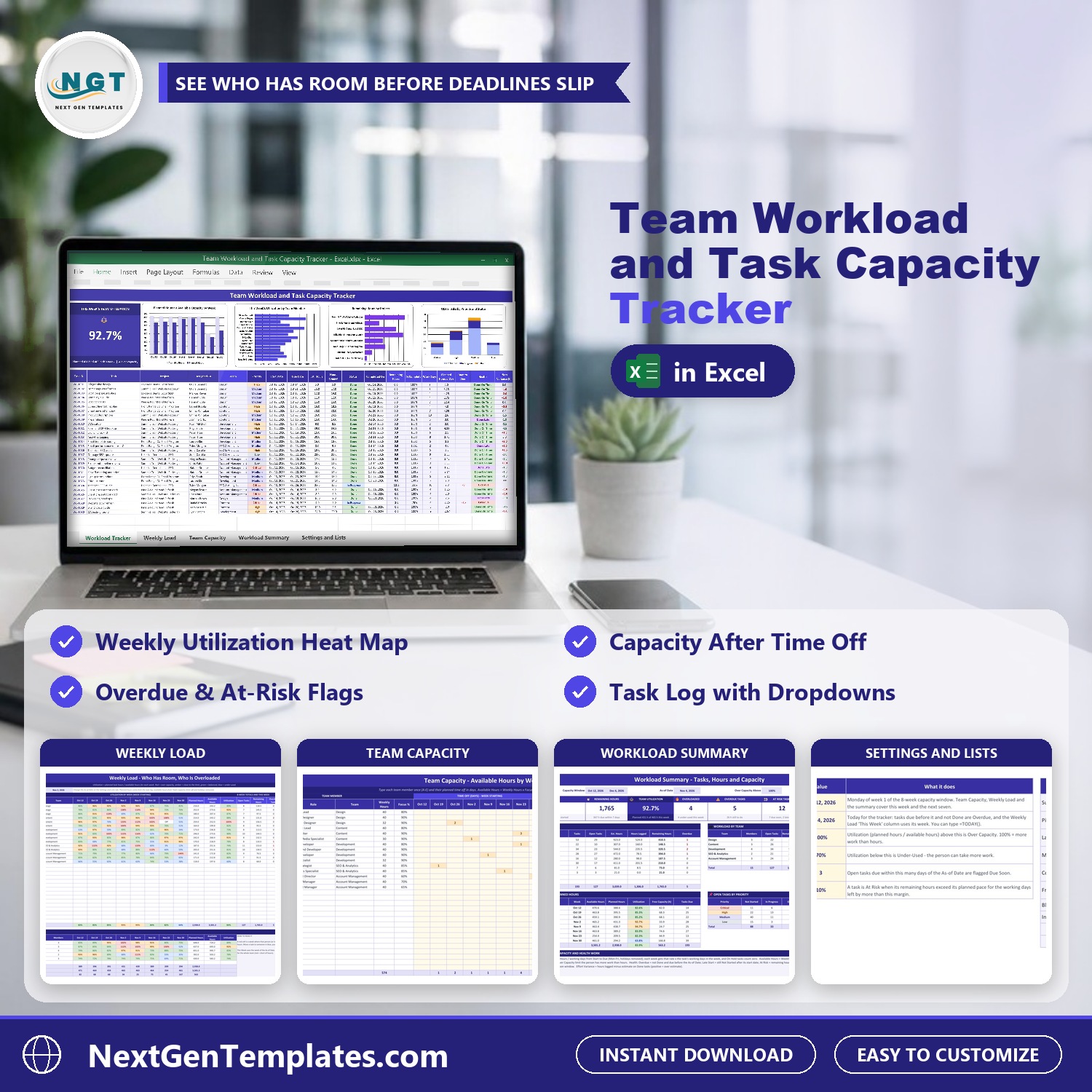
Team Workload and Task Capacity Tracker in Excel
A tracker that shows how much work each person carries against their capacity, so tasks are shared fairly.
Your next step: download the file, clear the sample tasks and enter this week’s work. Set a priority and a due date for every task, then check the Flag column each morning.
Frequently asked questions
How do you make a to do list in Excel?
Create a table with Task, Priority, Due date and % done columns, then add formulas for status, days left and an overdue flag. Add data bars to the percent column to show progress.
How do you add a progress bar in Excel?
Select the percent column, choose Conditional Formatting, then Data Bars, and set the minimum to 0 and the maximum to 1. You can also draw a text bar with the REPT function.
How do you mark overdue tasks in Excel?
Compare the due date with today's date in a formula such as =IF(D13<$B$9,"Overdue","On track"), then colour the result with conditional formatting. Check for Done first so finished tasks are not flagged.
Does this to do list template work in Google Sheets?
Yes. Upload the file to Google Drive and open it with Google Sheets. The formulas, drop-downs and data bars all work there.
Free download
To Do List Template practice file (.xlsx)
Working formulas, sample data and a How to use sheet. Opens in Excel, or import it into Google Sheets.
Want the finished version?
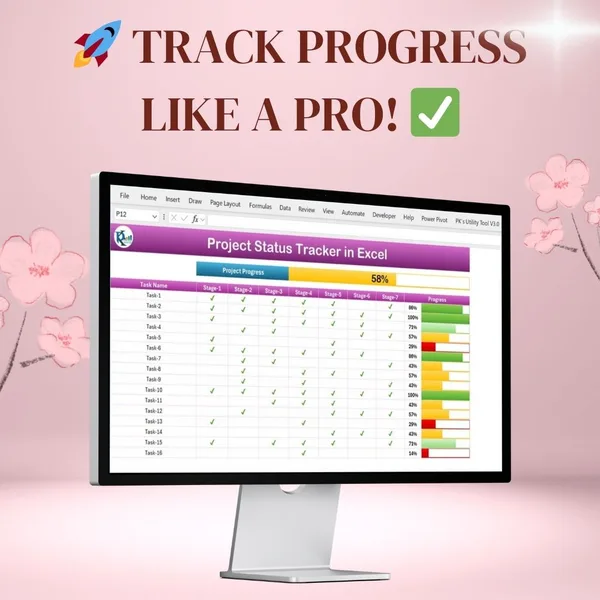
Project Progress Tracker in Excel
Colour-coded progress bars and automatic completion percentages.
View the pro template
PK is the founder of PK: An Excel Expert and NextGenTemplates.com and a corporate trainer in Excel, VBA and Power BI. Since 2020 he and his team have built Excel and Google Sheets tutorials and templates for business users, including many project management tools.