
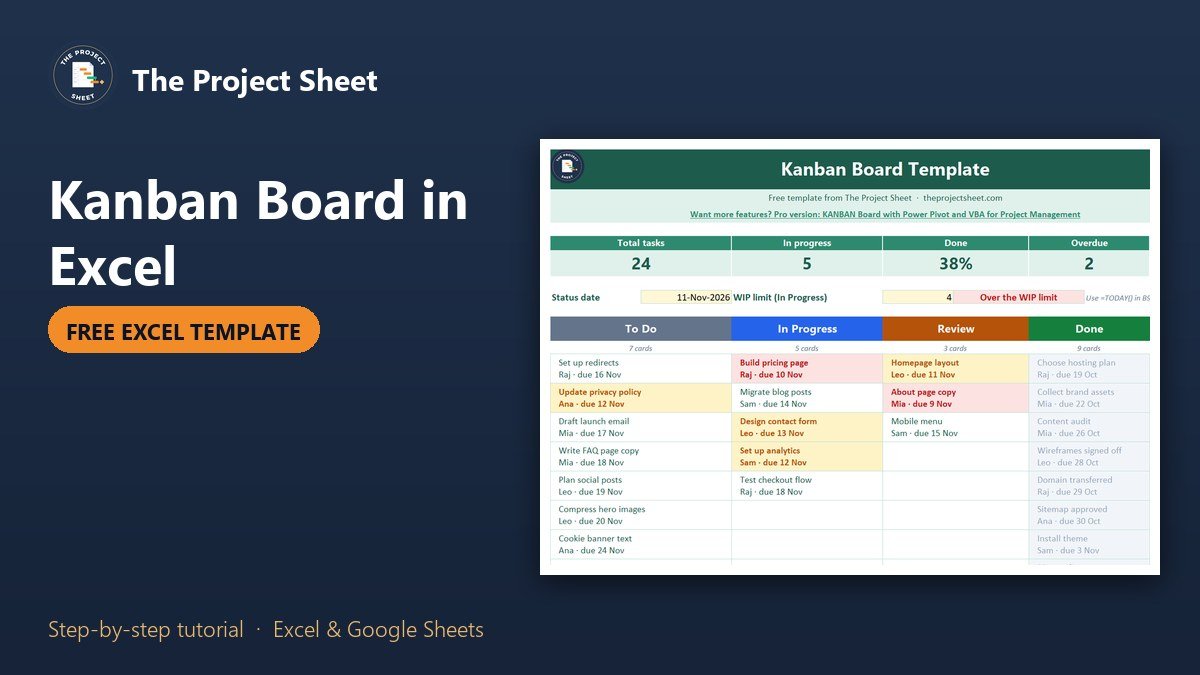
A kanban board is a set of status columns with one card per task, so you can see at a glance what is waiting, what is being worked on and what is done. To build one in Excel without dragging anything, keep a task list with a Status column and use INDEX and MATCH to place each task in the right column. Change the status in the list and the card moves by itself. The free template below works exactly this way.
Free download
Kanban Board Template practice file (.xlsx)
Working formulas, sample data and a How to use sheet. Opens in Excel, or import it into Google Sheets.
Why a formula-driven kanban board beats dragging cells
Excel has no card objects, so most do-it-yourself kanban boards are just coloured cells you cut and paste between columns. That breaks the first time someone sorts the sheet, and it leaves no record of owners or dates. A formula-driven board keeps the data in one task list and treats the board as a view of it. Sort, filter or add tasks and the board stays right.
It also means no macros. The file opens in Excel or Google Sheets without a security warning, and anyone who can pick from a drop-down can run it.
What is inside the free kanban board template
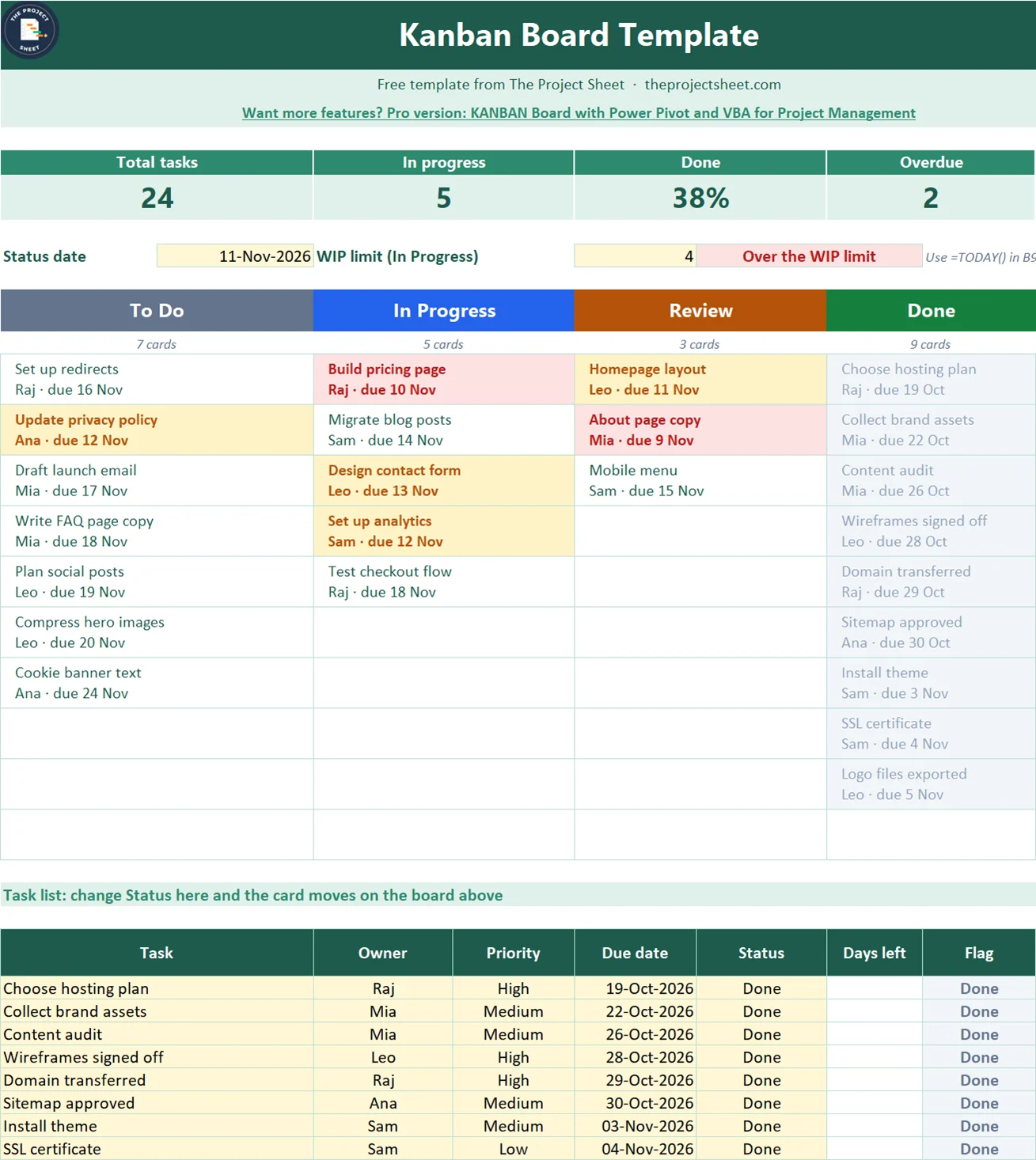
The workbook has two sheets: How to use and Kanban. The Kanban sheet has summary cards at the top, the board with four columns (To Do, In Progress, Review and Done), and the task list underneath. It holds 30 tasks, and each column shows its first 10 cards.
The sample is a made-up website relaunch with 24 tasks on a status date of November 11, 2026. The board shows 7 tasks in To Do, 5 in In Progress, 3 in Review and 9 in Done, which is 38% complete. Two cards are overdue, four are due within two days, and the WIP check shows red because 5 tasks are in progress against a limit of 4.
Who this kanban board is for
- A small team that wants a visual task board without paying for another subscription.
- A project manager who runs a weekly stand-up and needs one screen to talk from.
- Anyone who has tried a cut-and-paste board in Excel and watched it fall apart.
How to build the kanban board in Excel
The task list sits in rows 27 to 56 of the Kanban sheet, and the board sits in rows 13 to 22 above it. The formulas below show the first row of each, so copy them down and across.
Step 1: Set up the task list
Row 26 holds the headers: Task, Owner, Priority, Due date, Status, Days left, Flag and a helper called Key. Enter each task in the yellow cells. Give Status a drop-down of To Do, In Progress, Review and Done, and Priority a drop-down of High, Medium and Low, using data validation. The drop-down matters because the board reads those exact words.
Step 2: Add the status date and the WIP limit
Put the status date in B9. The sample uses a typed date so the snapshots stay stable. Enter =TODAY() if you want the board to update every day. Put the work-in-progress limit in E9. It is 4 here.
Step 3: Build the helper key
This is the trick that makes the board work without arrays. In I27, number each task inside its own status:
=IF(OR(A27="",F27=""),"",F27&"-"&COUNTIF(F$27:F27,F27))
The expanding range F$27:F27 counts how many times the status has appeared so far. The third task marked In Progress gets the key In Progress-3, and the first To Do gets To Do-1. Each key is unique, so MATCH can find it.
Step 4: Write the column headers
In row 11, type the four status names in A11, C11, E11 and G11. They must match the Status drop-down exactly. Each header spans two columns so the cards have room. Under each header, A12 shows how many cards the column holds:
=COUNTIF($F$27:$F$56,A11)&" cards"
Step 5: Pull the cards onto the board
In A13, ask for the first task in the To Do column. Use ROWS to make the card number grow as you copy the formula down:
=IFERROR(INDEX($A$27:$A$56,MATCH(A$11&"-"&ROWS(A$13:A13),$I$27:$I$56,0)),"")
The formula builds the text To Do-1, finds it in the Key column and returns the task name from the same row. In A14 the same formula asks for To Do-2, and so on. IFERROR leaves the cell blank when a column has no more cards. The template’s version also adds the owner and the due date underneath the task name, using the same MATCH with INDEX on the owner and date columns.
Because the formula refers to the header with A$11, you can copy the first card to the other three columns and it picks up In Progress, Review and Done on its own.
Step 6: Count days left and set the flag
In G27, count the days to the due date, and leave it blank once the task is done:
=IF(OR(A27="",E27="",F27="Done"),"",E27-$B$9)
In H27, turn that into a flag:
=IF(A27="","",IF(F27="Done","Done",IF(E27<$B$9,"Overdue",IF(E27-$B$9<=2,"Due soon","On track"))))
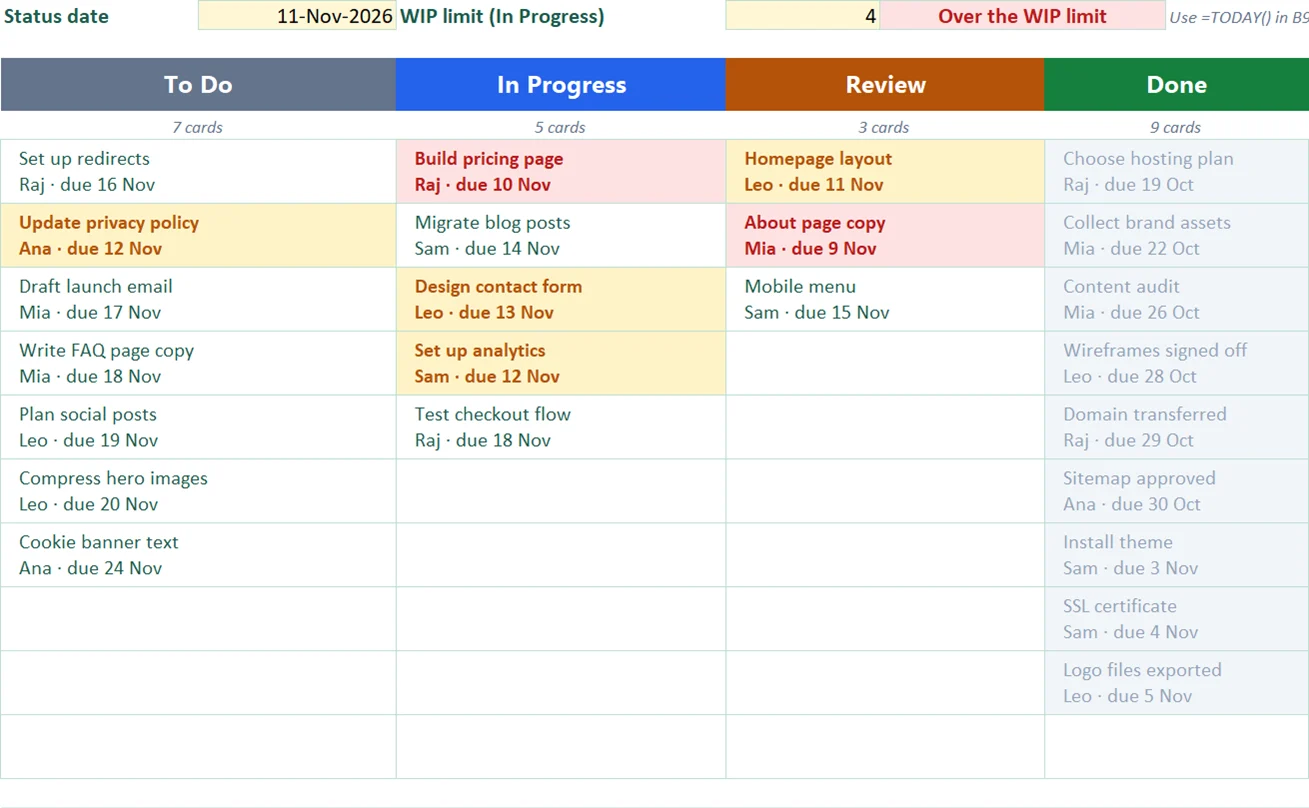
Done tasks show Done. For the rest, a due date before the status date is Overdue and anything due within two days is Due soon. In the sample, Build pricing page (due November 10) and About page copy (due November 9) are the two overdue cards.
Step 7: Colour the cards
Select the board area and add conditional formatting rules that look up the flag for each card with the same INDEX and MATCH pair. Overdue cards turn red, Due soon cards turn amber, and Done cards go grey. A card colour is much faster to read than a date.
Step 8: Add the WIP check and the summary cards
Work-in-progress limits are what stop a kanban board from becoming a long list of half-finished work. In F9, compare the count with the limit:
=IF(COUNTIF($F$27:$F$56,"In Progress")>E9,"Over the WIP limit","Within the limit")
With 5 tasks in progress and a limit of 4, the cell turns red and reads Over the WIP limit. The cards at the top use the same counting pattern, and the completion rate is:
=IFERROR(COUNTIF(F27:F56,"Done")/COUNTA(A27:A56),0)
That is 9 done out of 24 tasks, or 38%.
How to run a weekly board review
Start on the right and work left. Check Done first, so the team sees progress. Then open Review and ask who is waiting on whom, because a full Review column means a bottleneck sits with the reviewers, not the builders. Move on to In Progress and the WIP check. If the cell is red, finish something before anyone starts something new. Last, read To Do from the top and confirm the order still matches the priorities.
Change the Status in the task list as each item moves, and the board follows. In the sample, once Homepage layout moves from Review to Done, the Review column drops to 2 cards and the completion rate goes to 42%.
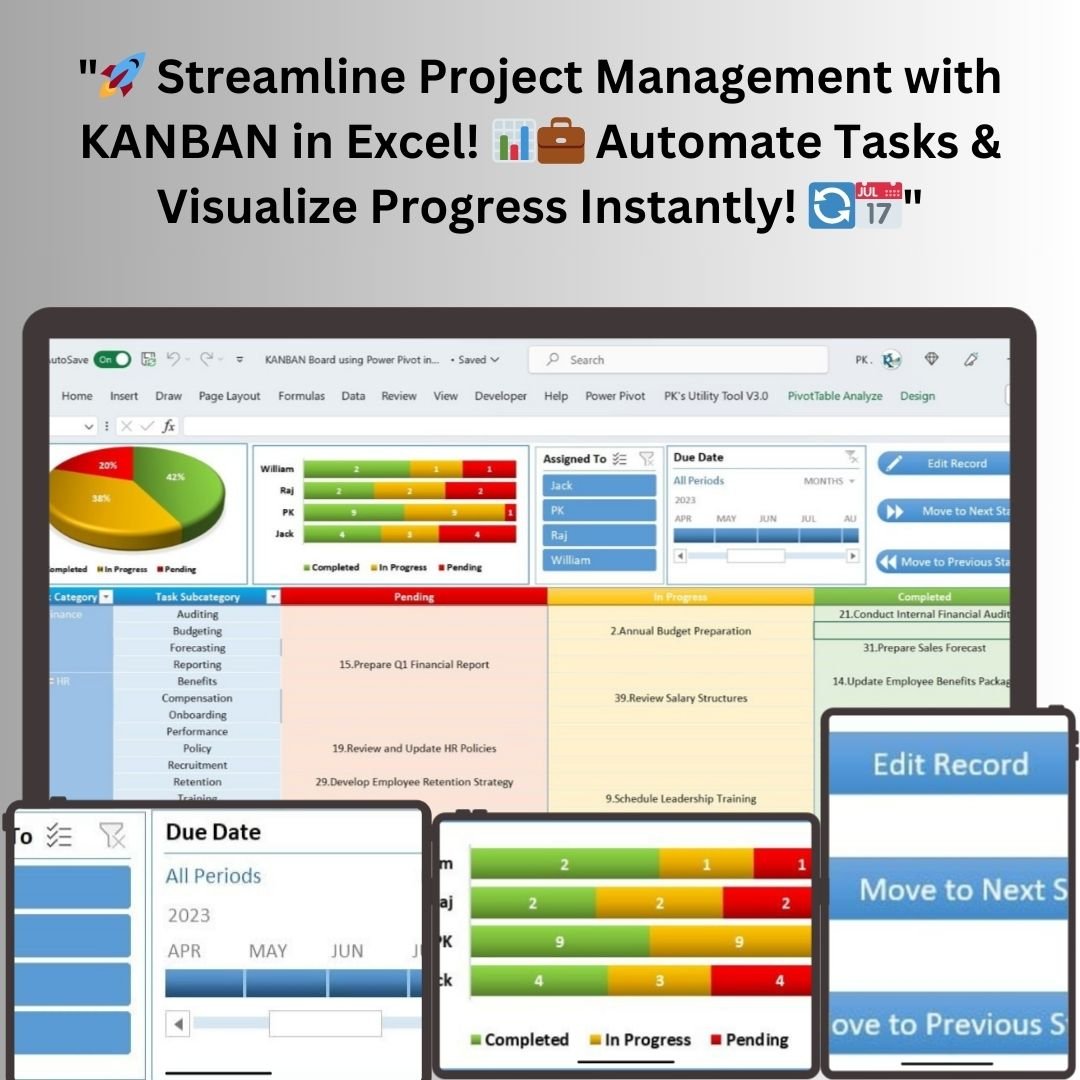
If you also need hours and approvals, pair the board with a timesheet template. For a wider plan with phases and owners, the project management template works well. Want a board with charts and a dashboard on top? The KANBAN Board with Power Pivot and VBA for Project Management covers that.
Common mistakes
- Typing a status the board does not know. Use the drop-down. A word such as Doing will not match any column header, so the card will not appear.
- Overwriting the board formulas. The cards are formulas. Change the Status in the task list, not the board.
- Skipping the WIP limit. Without a limit, In Progress fills up and nothing finishes.
- Leaving out due dates. A card with no date can never be Overdue, so it can sit forever.
- Using the board as the only record. Each column shows its first 10 cards. Keep Done tasks in the list so you keep the history.
- Too many columns. Four is enough for most small teams. Add more only when work really waits somewhere else.
Where to go from here
A board shows the work. To report on it, use the project status report template. To plan the work before it reaches the board, start with the project management template, and for hours spent use the timesheet template. New to the site? Read start here.
Want more than the free file?
KANBAN Board with Power Pivot and VBA for Project Management
A full kanban board with Power Pivot reporting and VBA automation, for teams that outgrow a simple task list.
Your next step: download the file, clear the sample tasks, and enter this week’s work. Set a WIP limit your team agrees on before the first stand-up.
Frequently asked questions
How do you make a kanban board in Excel?
Keep a task list with a Status column, add a helper key that numbers each task within its status, and use INDEX and MATCH to show each task in the matching column of a board. Changing the status then moves the card.
Do you need macros to build a kanban board in Excel?
No. A board driven by INDEX, MATCH and COUNTIF works without macros, so it opens without a security warning and also runs in Google Sheets.
What is a WIP limit on a kanban board?
It is the maximum number of tasks allowed in progress at once. A limit stops teams from starting more work than they can finish and shows bottlenecks early.
Does this kanban board template work in Google Sheets?
Yes. Upload the file to Google Drive and open it with Google Sheets. INDEX, MATCH, COUNTIF, ROWS and TEXT all work there.
Free download
Kanban Board Template practice file (.xlsx)
Working formulas, sample data and a How to use sheet. Opens in Excel, or import it into Google Sheets.
Want the finished version?
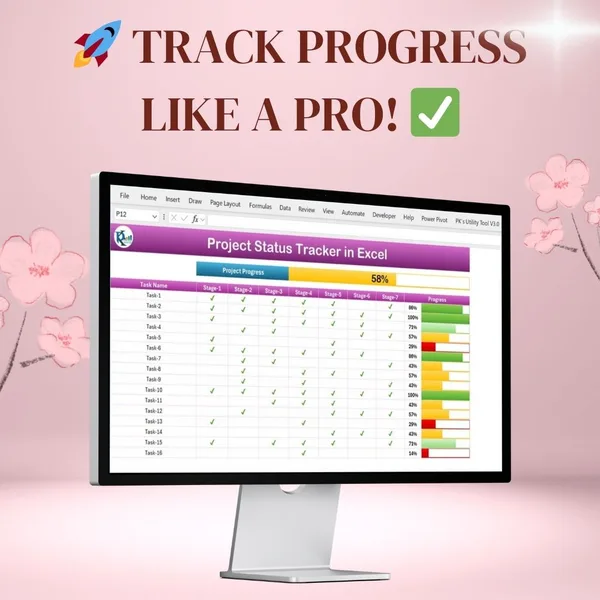
Project Progress Tracker in Excel
Colour-coded progress bars and automatic completion percentages.
View the pro template
PK is the founder of PK: An Excel Expert and NextGenTemplates.com and a corporate trainer in Excel, VBA and Power BI. Since 2020 he and his team have built Excel and Google Sheets tutorials and templates for business users, including many project management tools.