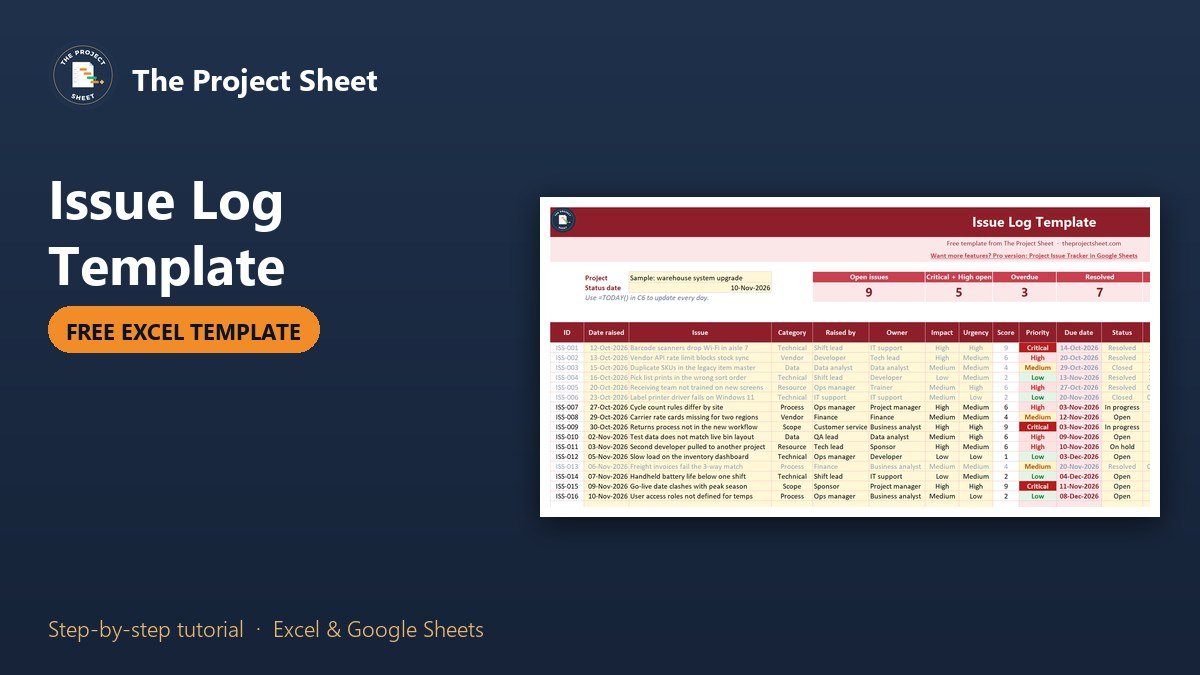
An issue log template is a table where you record every problem that is already affecting a project, who owns the fix, how urgent it is and when it must be solved. To build one in Excel, add columns for impact and urgency, turn them into a priority with MATCH, set a due date with WORKDAY, and flag anything late against a status date. The free template below does all of that and keeps a running count of open, overdue and resolved issues.
Free download
Issue Log Template practice file (.xlsx)
Working formulas, sample data and a How to use sheet. Opens in Excel, or import it into Google Sheets.
What an issue log is (and how it differs from a risk log)
A risk is something that might happen. An issue is something that has happened and is now blocking or slowing the work. A risk log asks how likely a problem is. An issue log skips that question and asks who is fixing it and by when.
Most teams track risks and issues together in a RAID log, and that works well for steering meetings. Once a project has more than a handful of live problems, though, a separate issue log is easier to run day to day. Each row has an owner, a due date that follows from its priority, and a flag that tells you whether it is on track.
What is inside the free issue log template
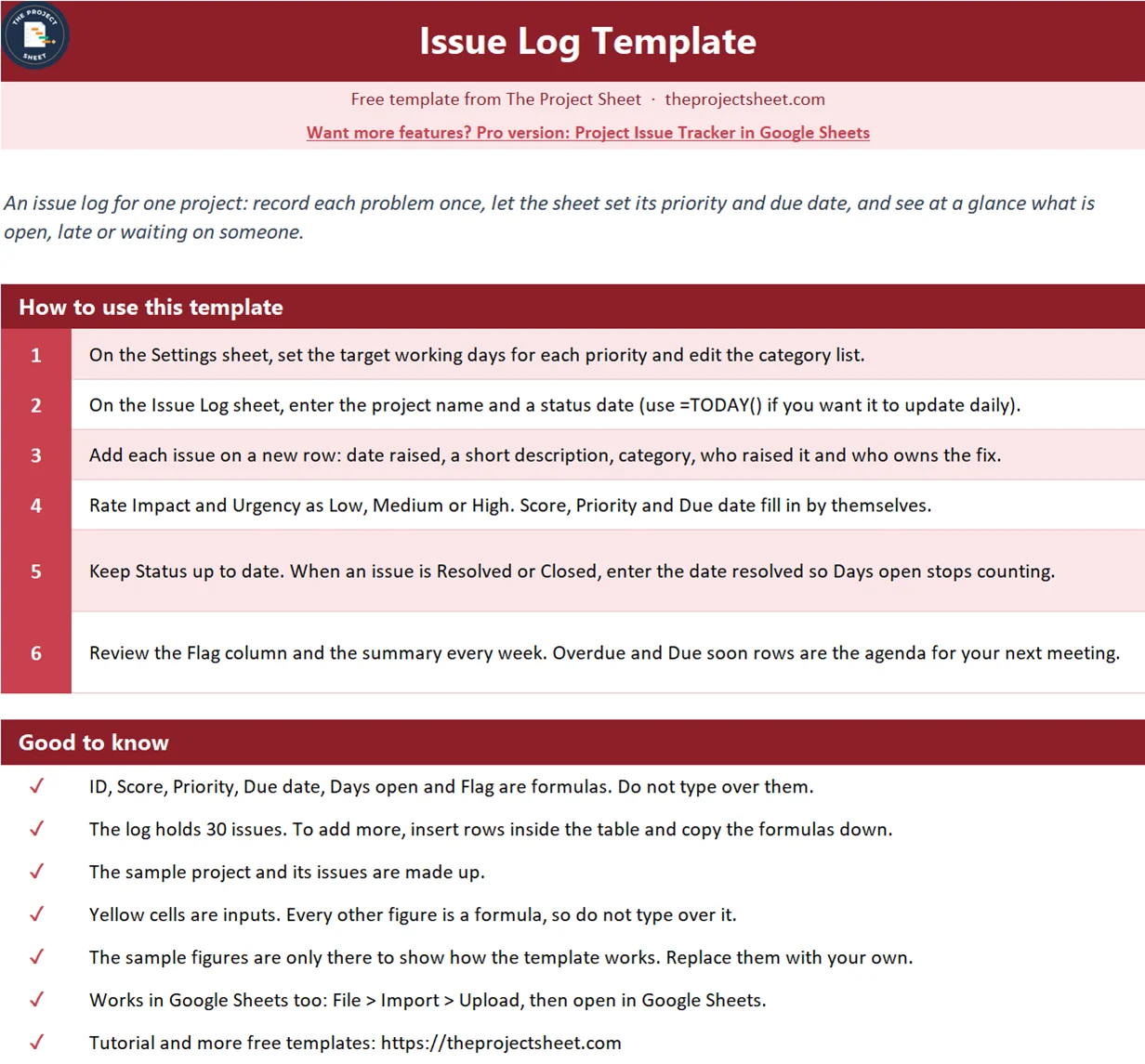
The workbook has three sheets: How to use, Issue Log and Settings. It holds 30 issues, uses no macros, and works in Google Sheets as well. Yellow cells are inputs and everything else is a formula.
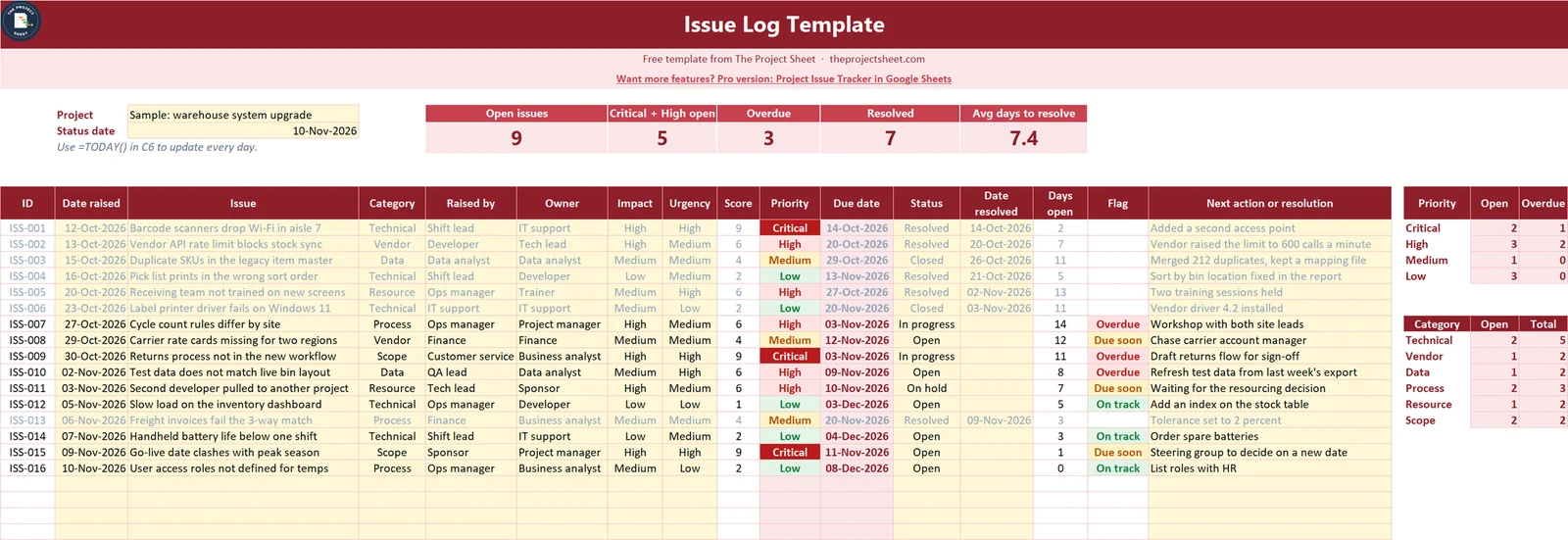
The sample is a made-up warehouse system upgrade with 16 issues raised between October 12 and November 10, 2026. On the status date of November 10 it shows 9 open issues, 5 of them Critical or High, 3 overdue, 7 resolved, and an average of 7.4 days to resolve.
Who this issue log is for
- A project manager who needs one list to run the weekly issue review.
- A team lead who keeps hearing about the same blocker in every stand-up with no owner and no date.
- Anyone who wants priority and due dates set by a rule, not by whoever shouts loudest.
How to build the issue log template in Excel
The table headers sit in row 10 of the Issue Log sheet and the first issue is in row 11. The formulas below use row 11, so copy each one down to row 40.
Step 1: Set up the status date and the Settings sheet
Put the project name in C5 and the status date in C6. The sample uses a typed date so the snapshots stay stable. Enter =TODAY() if you want the flags to update on their own.
On the Settings sheet, list the four priorities in A6:A9 with the target number of working days for each in B6:B9. The sample gives Critical 2 days, High 5, Medium 10 and Low 20. The category list in D6:D15 feeds the Category drop-down.
Step 2: Add the columns
Row 10 holds the headers: ID, Date raised, Issue, Category, Raised by, Owner, Impact, Urgency, Score, Priority, Due date, Status, Date resolved, Days open, Flag and Next action or resolution. Impact and Urgency get a drop-down of Low, Medium and High. Status gets Open, In progress, On hold, Resolved and Closed.
Step 3: Number the issues automatically
In A11, create an ID only when the row has an issue in it:
=IF(C11="","","ISS-"&TEXT(ROW()-10,"000"))
This returns ISS-001 in the first row, ISS-002 in the next, and stays blank on empty rows.
Step 4: Score impact and urgency
Impact is how much damage the issue does. Urgency is how soon that damage lands. In I11, turn each word into a number and multiply:
=IF(OR(G11="",H11=""),"",MATCH(G11,{"Low","Medium","High"},0)*MATCH(H11,{"Low","Medium","High"},0))
MATCH returns 1 for Low, 2 for Medium and 3 for High, so the score runs from 1 to 9. The array constant inside the formula means you do not need a lookup table for three words.
Step 5: Turn the score into a priority
In J11, map the score to one of four priorities:
=IF(I11="","",IF(I11=9,"Critical",IF(I11>=6,"High",IF(I11>=3,"Medium","Low"))))
Only High impact with High urgency reaches 9, so Critical stays rare. In the sample, three issues are Critical: Wi-Fi drops on the scanners, the missing returns process, and the go-live date that clashes with peak season.
Step 6: Set the due date from the priority
In K11, look up the target days for the priority and count that many working days from the date raised:
=IF(OR(B11="",J11=""),"",WORKDAY(B11,INDEX(Settings!$B$6:$B$9,MATCH(J11,Settings!$A$6:$A$9,0))))
INDEX and MATCH pull the target days from Settings, and WORKDAY skips weekends. ISS-009 was raised on Friday, October 30 as Critical, so it was due on Tuesday, November 3. Change Critical to 3 days on the Settings sheet and every Critical due date moves at once.
Step 7: Count the days open
In N11, measure from the date raised to the date resolved, or to the status date when the issue is still open:
=IF(OR(C11="",B11=""),"",IF(M11<>"",M11,$C$6)-B11)
This is what feeds the average resolution time. In the sample, the seven resolved issues took 2, 7, 11, 5, 13, 11 and 3 days, which averages 7.4.

Step 8: Flag what needs attention
In O11, compare the due date with the status date for open items, and catch closed items with no resolution date:
=IF(C11="","",IF(OR(L11="Resolved",L11="Closed"),IF(M11="","Add date",""),IF(K11<$C$6,"Overdue",IF(K11-$C$6<=2,"Due soon","On track"))))
Resolved and Closed issues show nothing unless the date resolved is missing, which shows Add date. Open issues show Overdue, Due soon within two days, or On track. Conditional formatting colours each word and greys out the closed rows.
Step 9: Add the summary cards and tables
The cards above the table count open issues by status, so a blank Flag on a closed row is never counted by mistake:
=COUNTIFS(C11:C40,"<>",L11:L40,"<>Resolved",L11:L40,"<>Closed")
=COUNTIF(O11:O40,"Overdue")
=IFERROR(AVERAGEIFS(N11:N40,M11:M40,"<>"),0)
The table on the right splits open and overdue issues by priority with the same COUNTIFS pattern. In the sample, 2 Critical issues are open and 1 is overdue, and 3 High issues are open with 2 overdue.
How to run a weekly issue review with this log
Sort or filter by the Flag column and start with Overdue. For each one, ask the owner for the new date and the reason it slipped, then write it in Next action. Move on to Due soon, then scan any issue that is On hold. On hold items keep their due date on purpose: ISS-011, a developer pulled onto another project, is due on November 10 and shows Due soon even while it waits for a decision.
Look at the category table as well. In the sample, both Scope issues are still open, which tells the sponsor where the real pressure is. If an issue keeps coming back, it may belong in your RAID log as a risk for the next phase too.
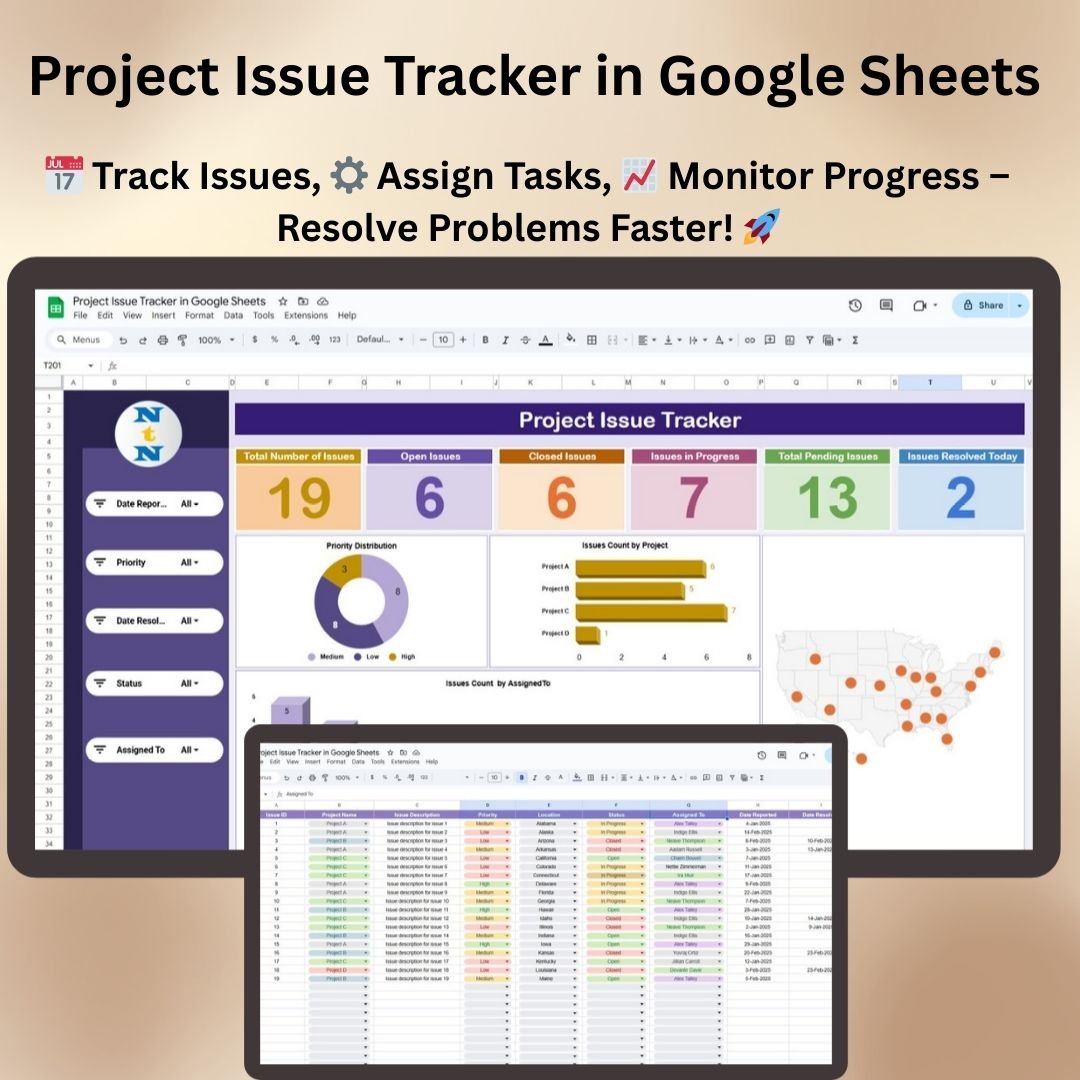
Need more than one project, a dashboard and a form for raising issues? The Project Issue Tracker in Google Sheets covers that.
Common mistakes
- Logging risks as issues. If it has not happened yet, it belongs in the risk register.
- No single owner. A team name is not an owner. Put one person in the Owner column.
- Typing over Priority or Due date. Change Impact, Urgency or the Settings days instead, so the rule stays the same for everyone.
- Closing an issue without a date. Days open keeps counting and the Flag shows Add date until you fill in Date resolved.
- Rating everything High and High. When every issue is Critical, none of them is. Be honest about urgency.
- Deleting resolved rows. Keep them. They hold your average resolution time and the record of what was fixed.
Where to go from here
Report the open count and the overdue items each week with the project status report template. To track risks, assumptions and dependencies next to your issues, use the RAID log template. For the tasks that fix each issue, the project management template works well. New to the site? Read start here.
Want more than the free file?
Project Issue Tracker in Google Sheets
A ready-made issue tracker with a dashboard, owner workload and status charts for teams that run several projects.
Your next step: download the file, clear the sample rows, and log the three problems your team mentioned in the last stand-up. Give each one an owner before the day ends.
Frequently asked questions
What should an issue log include?
An ID, the date raised, a description, category, who raised it, one owner, impact, urgency, priority, due date, status, date resolved and the next action or resolution.
What is the difference between an issue log and a risk register?
A risk register tracks problems that might happen and how likely they are. An issue log tracks problems that have already happened and who is fixing them by when.
How do you prioritize issues in an issue log?
Rate impact and urgency as Low, Medium or High, multiply them as 1 to 3, and map the score to Critical, High, Medium or Low. Each priority then gets a target number of working days.
Does this issue log template work in Google Sheets?
Yes. Upload the file to Google Drive and open it with Google Sheets. MATCH, INDEX, WORKDAY, COUNTIFS, SUMPRODUCT and AVERAGEIFS all work there.
Free download
Issue Log Template practice file (.xlsx)
Working formulas, sample data and a How to use sheet. Opens in Excel, or import it into Google Sheets.
Want the finished version?
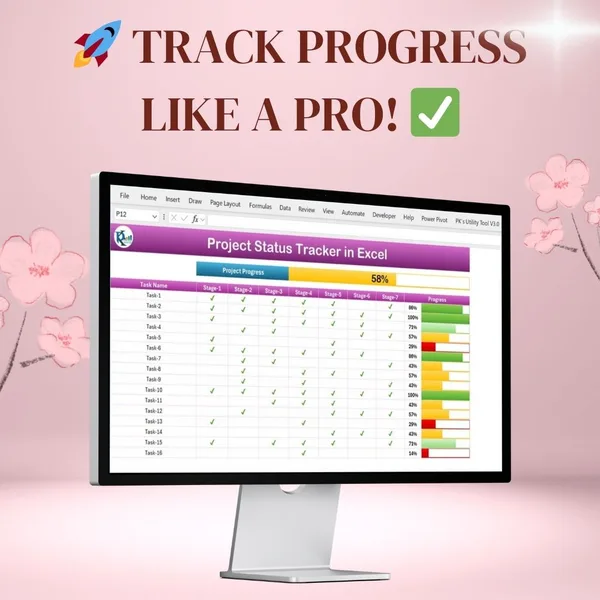
Project Progress Tracker in Excel
Colour-coded progress bars and automatic completion percentages.
View the pro template
PK is the founder of PK: An Excel Expert and NextGenTemplates.com and a corporate trainer in Excel, VBA and Power BI. Since 2020 he and his team have built Excel and Google Sheets tutorials and templates for business users, including many project management tools.