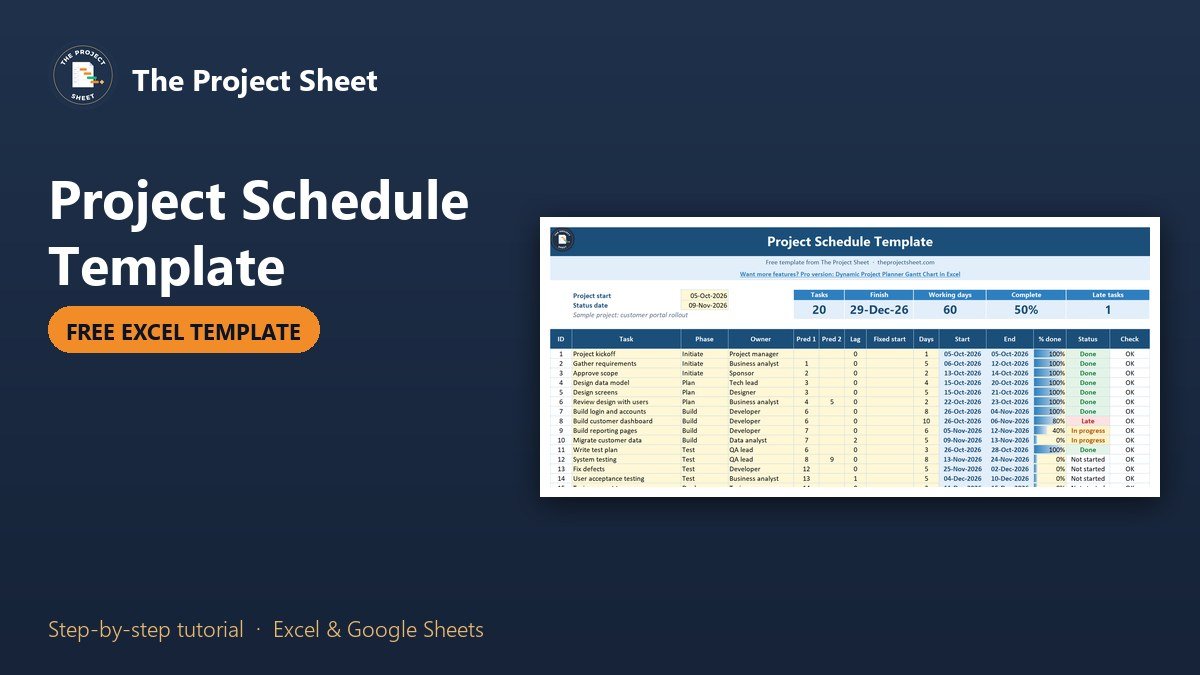
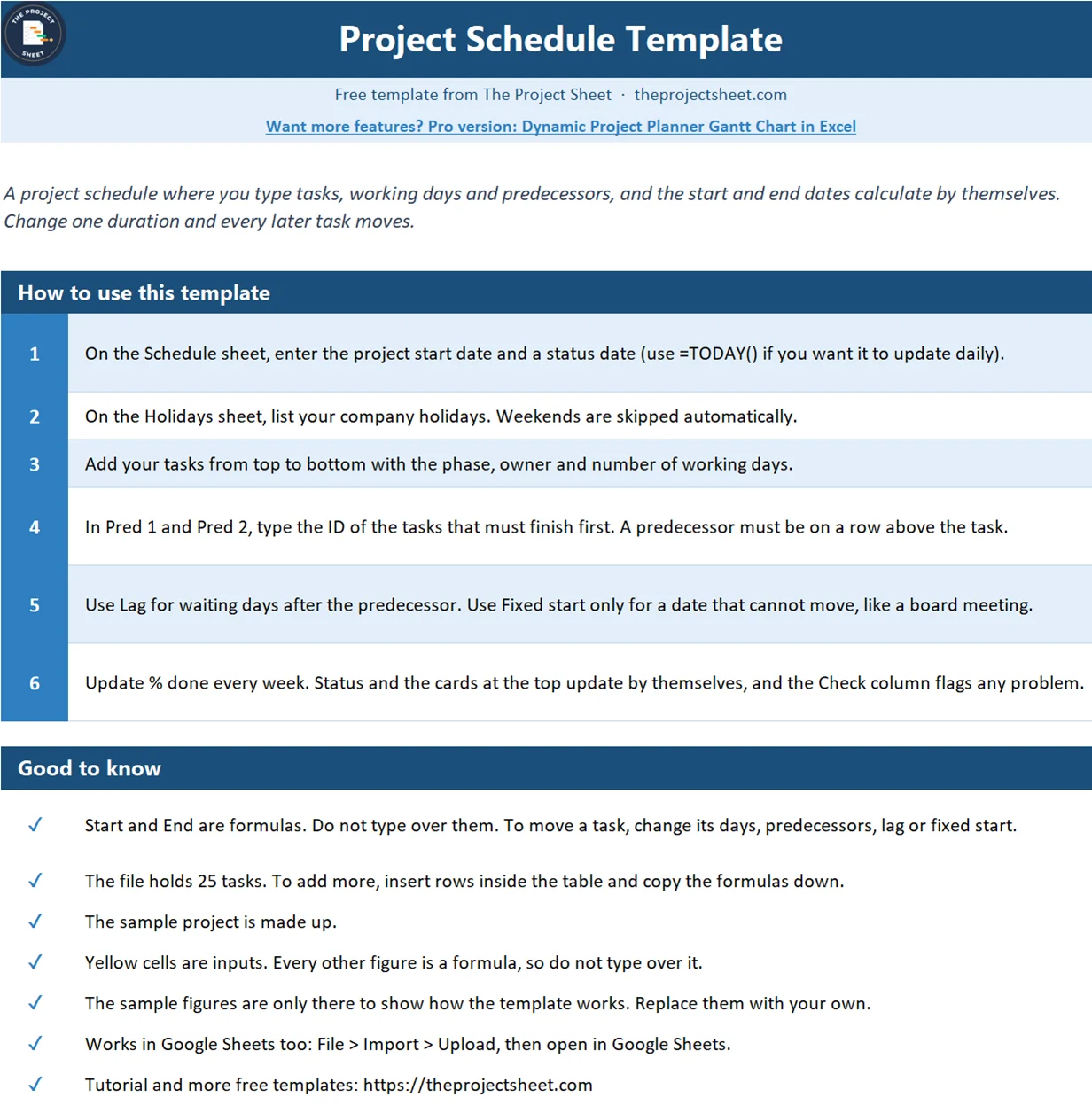
A project schedule template Excel file lists every task with its duration and the tasks it depends on, then calculates start and end dates for you. To build one, add columns for working days and predecessors, use WORKDAY with INDEX and MATCH to find each start date, and add a holiday list so weekends and days off are skipped. The free template below does all of this, so changing one duration moves every task that follows.
Free download
Project Schedule Template practice file (.xlsx)
Working formulas, sample data and a How to use sheet. Opens in Excel, or import it into Google Sheets.
What this project schedule template does
A task list with typed dates goes stale the first time something slips. You have to find every later task and retype it. A schedule with dependencies removes that work, because each task only knows what it waits for.
The workbook has three sheets: How to use, Schedule and Holidays. It holds 25 tasks, supports two predecessors per task, and uses no macros or add-ins. Yellow cells are inputs, and everything else is a formula.
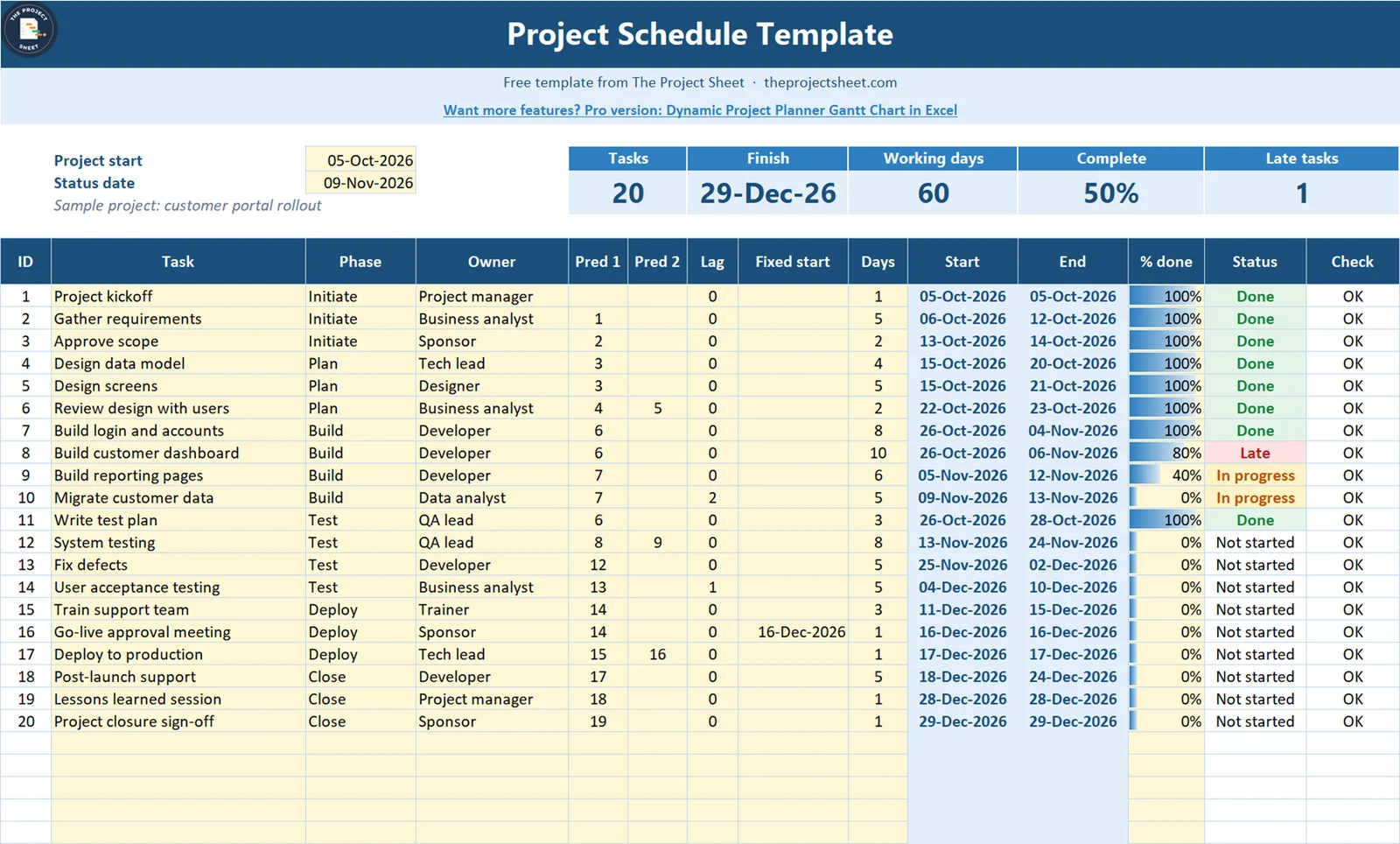
The sample is a made-up customer portal rollout with 20 tasks starting on October 5, 2026. It finishes on December 29, 2026, takes 60 working days, and is 50% complete on the status date, with one task late.
Who this project schedule excel file is for
- A project manager who needs real dependencies but does not have Microsoft Project.
- A team lead who keeps being asked what happens to the launch if one task runs over.
- Anyone planning a project of up to about 25 tasks. Bigger programs usually need dedicated software.
How to build the project schedule template in Excel
The formulas below use row 15, the sixth task, because it waits on two others. Tasks start in row 10 on the Schedule sheet.
Step 1: Set up the inputs
Put the project start date in C5 and the status date in C6. The status date is typed in the sample so the snapshot stays stable. Enter =TODAY() if you want it to update every day.
Step 2: Add a holiday list
On the Holidays sheet, list your non-working dates in A6:A25. The sample includes Thanksgiving, Christmas Day and New Year’s Day. Replace them with your own calendar.
Step 3: Number the tasks automatically
Row 9 holds the headers: ID, Task, Phase, Owner, Pred 1, Pred 2, Lag, Fixed start, Days, Start, End, % done, Status and Check. Give each task an ID in A10, then copy down:
=IF(B10="","",ROW()-9)
This returns a number only when the row has a task name, so empty rows stay blank.
Step 4: Enter tasks, days and predecessors
Type each task from top to bottom with its working days in column I. In Pred 1 and Pred 2, type the ID of any task that must finish first. A predecessor must sit on a row above the task, which keeps the formulas free of circular references. Lag in column G adds waiting days, such as time for a data export to finish.
Step 5: Calculate the start date
This is the formula that makes the schedule work. In J15:
=IF(B15="","",IF(H15<>"",H15,IF(AND(E15="",F15=""),WORKDAY($C$5-1,1,Holidays!$A$6:$A$25),WORKDAY(MAX(IFERROR(INDEX(K$10:K14,MATCH(E15,A$10:A14,0)),0),IFERROR(INDEX(K$10:K14,MATCH(F15,A$10:A14,0)),0)),1+G15,Holidays!$A$6:$A$25))))
Read it from the outside in. A date in Fixed start wins. A task with no predecessors starts on the project start date. Otherwise, INDEX and MATCH find the end date of each predecessor, MAX takes the later one, and WORKDAY moves forward to the next working day plus any lag. The ranges stop one row above the task, and IFERROR treats an empty predecessor as zero.
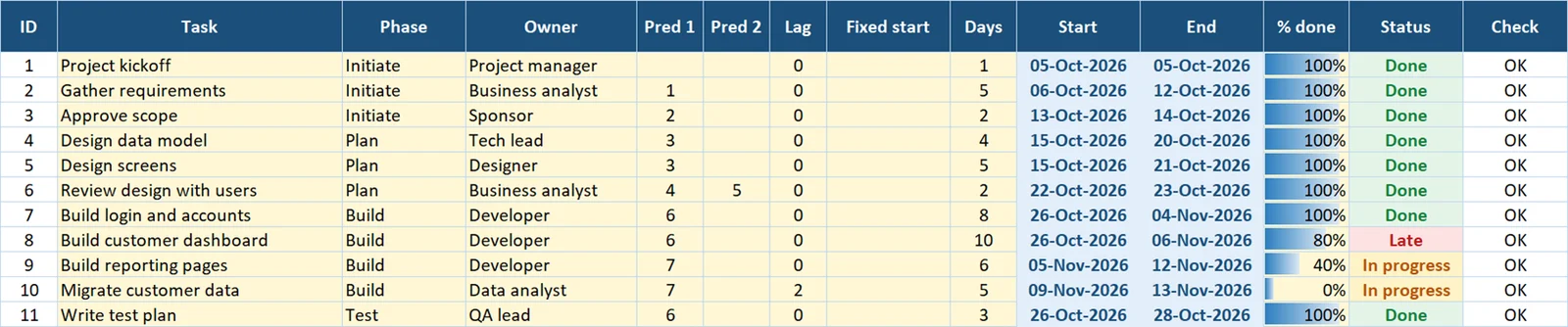
In the sample, task 6 waits on task 4, which ends October 20, and task 5, which ends October 21. It starts on October 22, the working day after the later one.
Step 6: Calculate the end date
In K15, count the working days forward from the start. The minus 1 is there because the start date counts as day one:
=IF(OR(B15="",I15=""),"",WORKDAY(J15,I15-1,Holidays!$A$6:$A$25))
Task 13, Fix defects, shows the holiday list working. It starts November 25 and takes 5 days, but Thanksgiving is skipped, so it ends December 2.
Step 7: Add a status formula
Column L holds percent done. Column M turns it into a status by comparing dates with the status date:
=IF(B15="","",IF(L15>=1,"Done",IF(K15<$C$6,"Late",IF(J15<=$C$6,"In progress","Not started"))))
A task is Late when its end date has passed and it is not complete. In the sample, Build customer dashboard ended November 6 at 80%, so it is flagged.
Step 8: Add the Check column
Column N catches problems before they spoil the dates. It flags a predecessor that is not above the task, a task with no days, and a Fixed start that falls before its predecessor has finished. Use it as your first stop whenever a date looks odd.
Step 9: Add the summary cards
The cards above the table use four short formulas. The finish date is the latest end date, and the working days count from the project start:
=MAX(K10:K34)
=NETWORKDAYS(C5,MAX(K10:K34),Holidays!$A$6:$A$25)
Percent complete is weighted by duration, so a 10-day task counts for more than a 1-day task. Late tasks is a simple count:
=SUMPRODUCT(I10:I34,L10:L34)/SUM(I10:I34)
=COUNTIF(M10:M34,"Late")
What happens when a task slips
Try this in the file. Change System testing, task 12, from 8 days to 10. Fix defects, testing and training all move, and the finish goes from December 29 to December 30. It moves by one day rather than two because of the Go-live approval meeting, which has a fixed start of December 16. Training had one spare day before that meeting.
Now change Build customer dashboard, task 8, from 10 days to 12. Nothing after it moves, because System testing waits on the later of tasks 8 and 9, and task 9 still ends last. That is the real value of dependencies: you can see which slips matter.
Want this on a visual timeline? The Dynamic Project Planner Gantt Chart in Excel adds a full Gantt view. You can also turn these dates into bars with our step-by-step Gantt chart tutorial.
Common mistakes
- Typing over Start or End. One typed date breaks the chain below it. Use Days, Lag or Fixed start instead.
- Listing a predecessor below its task. The Check column shows Check pred. Move the task or reorder the list.
- Using Fixed start too often. A fixed date stops a task from moving when its predecessors slip. Keep it for real commitments.
- Entering calendar days. Days means working days, so a 5-day task is one working week.
- Linking every task to the one before it. That makes everything look sequential. Tasks 4 and 5 run side by side because both wait only on task 3.
- Leaving out holidays.
WORKDAYonly knows about weekends until you give it a list.
Where to go from here
For a phase-level view for stakeholders, use the project timeline template. If you only need owners and dates without dependencies, the simpler project plan template may be enough. New to the site? Read start here.

Want more than the free file?
Dynamic Project Planner Gantt Chart in Excel
A ready-made planner with a dynamic Gantt view for presenting your schedule to the team.
Your next step: download the file, replace the sample tasks with your own, and set each predecessor. Then change one duration and watch the finish date.
Frequently asked questions
How do I create a project schedule in Excel?
List tasks with working days and predecessors, calculate each start date with WORKDAY from the latest predecessor end date, then calculate each end date from the start and duration.
Can Excel calculate task dependencies automatically?
Yes. INDEX and MATCH find a predecessor's end date, MAX picks the latest one, and WORKDAY returns the next working day. Change a duration and later tasks move.
How do I skip weekends and holidays in a project schedule?
WORKDAY skips weekends by default. Add a list of holiday dates as its third argument and those days are skipped as well.
What is the difference between a project schedule and a project plan?
A project plan describes scope, owners and approach. A project schedule focuses on timing, showing when each task happens and which tasks depend on others.
Does this project schedule template work in Google Sheets?
Yes. Upload the file to Google Drive and open it with Google Sheets. WORKDAY, NETWORKDAYS, INDEX, MATCH and SUMPRODUCT all work there.
Free download
Project Schedule Template practice file (.xlsx)
Working formulas, sample data and a How to use sheet. Opens in Excel, or import it into Google Sheets.
Want the finished version?
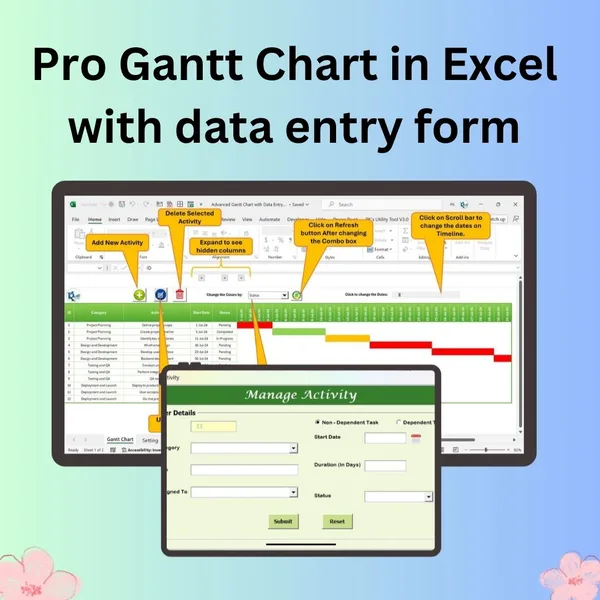
Pro Gantt Chart in Excel with Data Entry Form
Add and update activities through a form while the Gantt chart updates itself.
View the pro template
PK is the founder of PK: An Excel Expert and NextGenTemplates.com and a corporate trainer in Excel, VBA and Power BI. Since 2020 he and his team have built Excel and Google Sheets tutorials and templates for business users, including many project management tools.