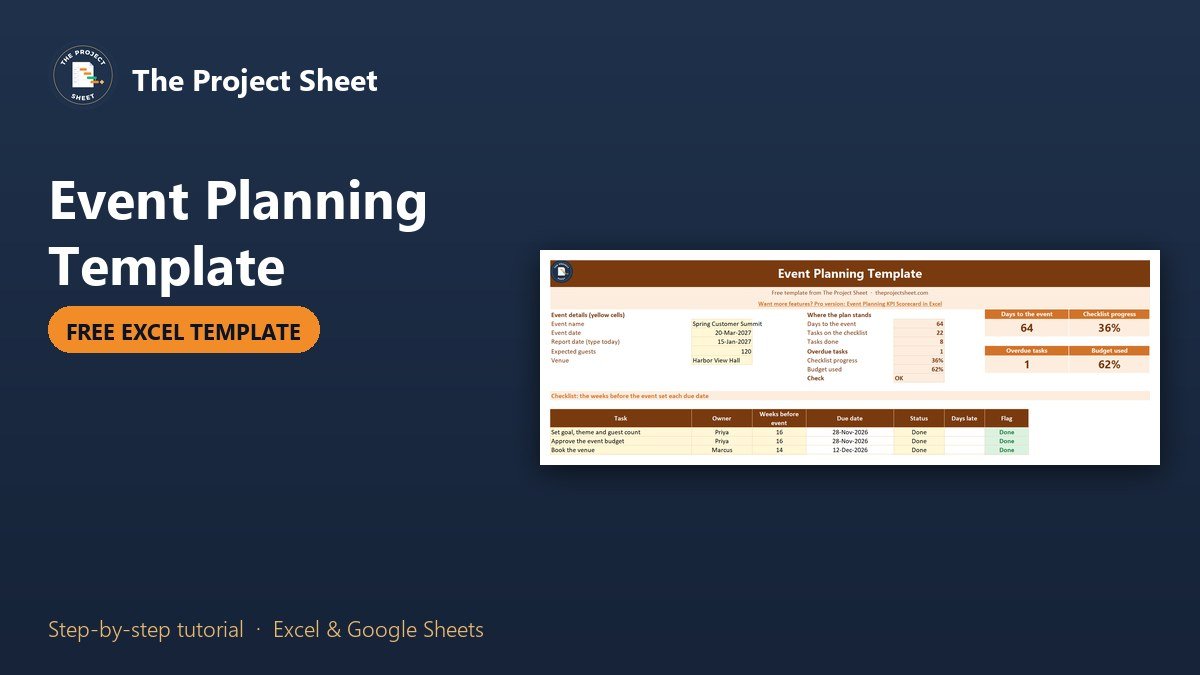
An event planning template in Excel needs three things: a checklist whose due dates are counted back from the event date, a budget that flags categories going over, and a timeline for the day itself. The free event planning template below has all three. In the sample, a 120 guest event is 64 days away, 8 of 22 tasks are done, and 62% of a 19,300 budget is spent.
Free download
Event Planning Template (.xlsx, also opens in Google Sheets)
Working formulas, sample data and a How to use sheet. Opens in Excel, or import it into Google Sheets.
Why plan an event in a spreadsheet
Events fail on small things: a caterer who never got the final headcount, a speaker who was not confirmed, a deposit paid twice. A shared checklist with an owner and a date on every task prevents most of that. A budget next to it shows early when one category is running hot, while you can still move money.
Everything is connected to one date. When the event moves by a week, every due date on the checklist moves with it. That is the main reason to use formulas here instead of a plain list.
What is inside the free event planning template
The workbook has four sheets: How to use, Event Plan, Budget and Day Timeline. It has no macros and opens in Google Sheets. The Event Plan sheet has the event details, a status box, four cards and a checklist for up to 30 tasks. The Budget sheet has ten categories. The Day Timeline sheet lists up to 20 activities with start and end times.
The event, the people and the figures are made up: a Spring Customer Summit at Harbor View Hall on 20 March 2027, planned with a report date of 15 January 2027.

Who this event planning template is for
- Project managers who have been handed a conference, a launch party or an offsite.
- Small business owners and non-profits planning a customer event or a fundraiser.
- Anyone running a team event who wants one place for tasks, money and the schedule.
How to build the event planning template step by step
The event details are in column B of the Event Plan sheet. B6 is the event date, B7 is the report date and B8 is the number of guests. The checklist starts in row 16: A is the task, B the owner, C the weeks before the event, D the due date, E the status, F the days late and G the flag.
Step 1: Count the due dates back from the event date
Each task stores only how many weeks before the event it must be done. In D16:
=IF(OR(A16="",C16=""),"",$B$6-C16*7)
With the event on 20 March 2027, a task set to 16 weeks is due on 28 November 2026. A task set to 0 is due on the day, and a negative number puts a task after the event, such as the thank you email at minus 1.
Step 2: Flag every task
The flag turns a date and a status into a word you can scan. In G16:
=IF(A16="","",IF(E16="Done","Done",IF(D16<$B$7,"Overdue",IF(D16-$B$7<=14,"Due soon","On track"))))
A finished task is always Done. A task that is past its date is Overdue. A task due within 14 days is Due soon. Everything else is On track. Conditional formatting colours the cells green, red and amber so the problems stand out.
Step 3: Count the days late
The days late column only shows a number for open tasks. In F16:
=IF(OR(D16="",E16="Done"),"",MAX(0,$B$7-D16))
In the sample, “Finalise the catering menu” was due on 2 January 2027 and is still in progress on 15 January, so it shows 13 days late.
Step 4: Count overdue tasks and progress
The status box counts with COUNTIFS. Overdue tasks in E8:
=COUNTIFS(D16:D45,"<"&B7,E16:E45,"<>Done",A16:A45,"<>")
The third condition skips empty rows. Progress in E9 is =IF(E6=0,0,E7/E6), which gives 8 done out of 22 tasks, or 36%. Two more tasks are Due soon: the registration page and the photographer.
Step 5: Build the budget with a flag per category
On the Budget sheet, each category has a budget and the amount spent so far. The remainder in column D is =B6-C6 and the share used in column E is =IF(B6=0,0,C6/B6). The flag in F6 is:
=IF(C6>B6,"Over budget",IF(E6>=0.9,"Watch","OK"))
Venue was budgeted at 4,500.00 and has cost 4,800.00, so it shows Over budget by 300.00. AV and equipment has used 1,750.00 of 1,800.00, which is 97%, so it shows Watch. That is the moment to decide whether to cut something else, not at the final invoice.

Step 6: Show the budget per guest
Per guest numbers help when you compare events. In D18:
=IF('Event Plan'!B8=0,0,B16/'Event Plan'!B8)
A budget of 19,300.00 for 120 guests is 160.83 per guest, and 99.17 per guest has been spent so far. The IF protects the formula if the guest count is empty.
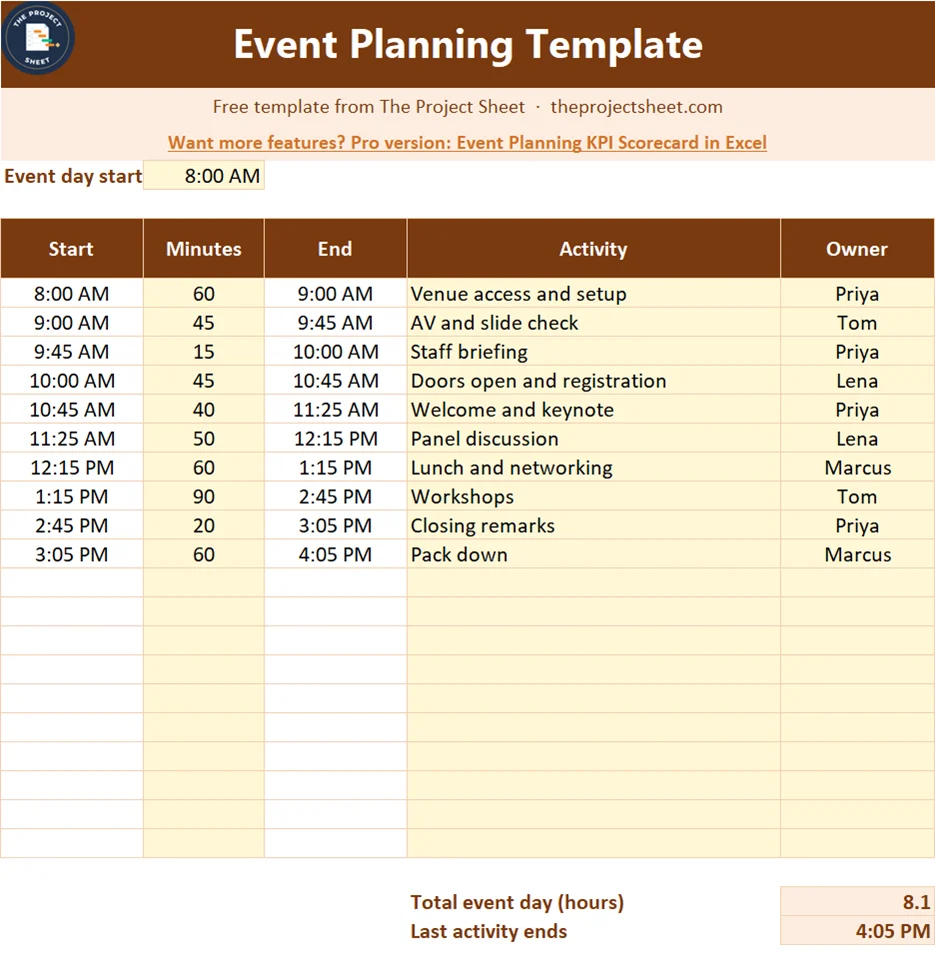
Step 7: Chain the day timeline
On the Day Timeline sheet only the first start time is typed. Each end time adds the minutes to the start. Excel stores a time as a fraction of a day, so 60 minutes is 60 divided by 1440. In C7:
=IF(B7="","",A7+B7/1440)
Every start after the first takes the end of the row above, in A8 =IF(B8="","",C7). Change one duration and every later time moves. The sample day starts at 8:00 AM, runs 485 minutes, which is 8.1 hours, and the last activity ends at 4:05 PM.
Step 8: Add a check cell
A task with no owner is a task nobody does. The check in E11 looks for it:
=IF(COUNTIFS(B16:B45,"",A16:A45,"<>")=0,"OK","Missing owner")

How to use it in the weeks before the event
Once a week, change the report date in B7 to today and read the status box. Start with the Overdue count, then the tasks marked Due soon, then the Budget flags. A ten minute review each week is usually enough to catch a late task before it blocks another one. Share the file with the owners so each person updates their own status, and keep one person responsible for the budget sheet.
On event day, print the Day Timeline sheet. It fits one page and gives every owner the same schedule, so questions like “when does lunch start” have a single answer.
Common mistakes
- Typing due dates by hand. When the event date moves, nothing updates. Count back from the event date instead.
- Tasks without an owner. Give every task one name, not a team.
- Waiting for the invoice to check the budget. Update the spent column when you pay a deposit.
- No contingency line. Keep 5 to 10% aside for the thing you did not plan.
- Forgetting the tasks after the event. Thank you emails and final payments belong on the checklist too.
Adapt the template to your own event
Replace the sample tasks, categories and activities with your own. Move the event date and watch the checklist update. If your event is a project with phases and dependencies, the project timeline template in Excel gives you a visual one-page view. For larger plans, start from the project management template in Excel, and use the project plan template to list work in phases.
Want more than the free file?
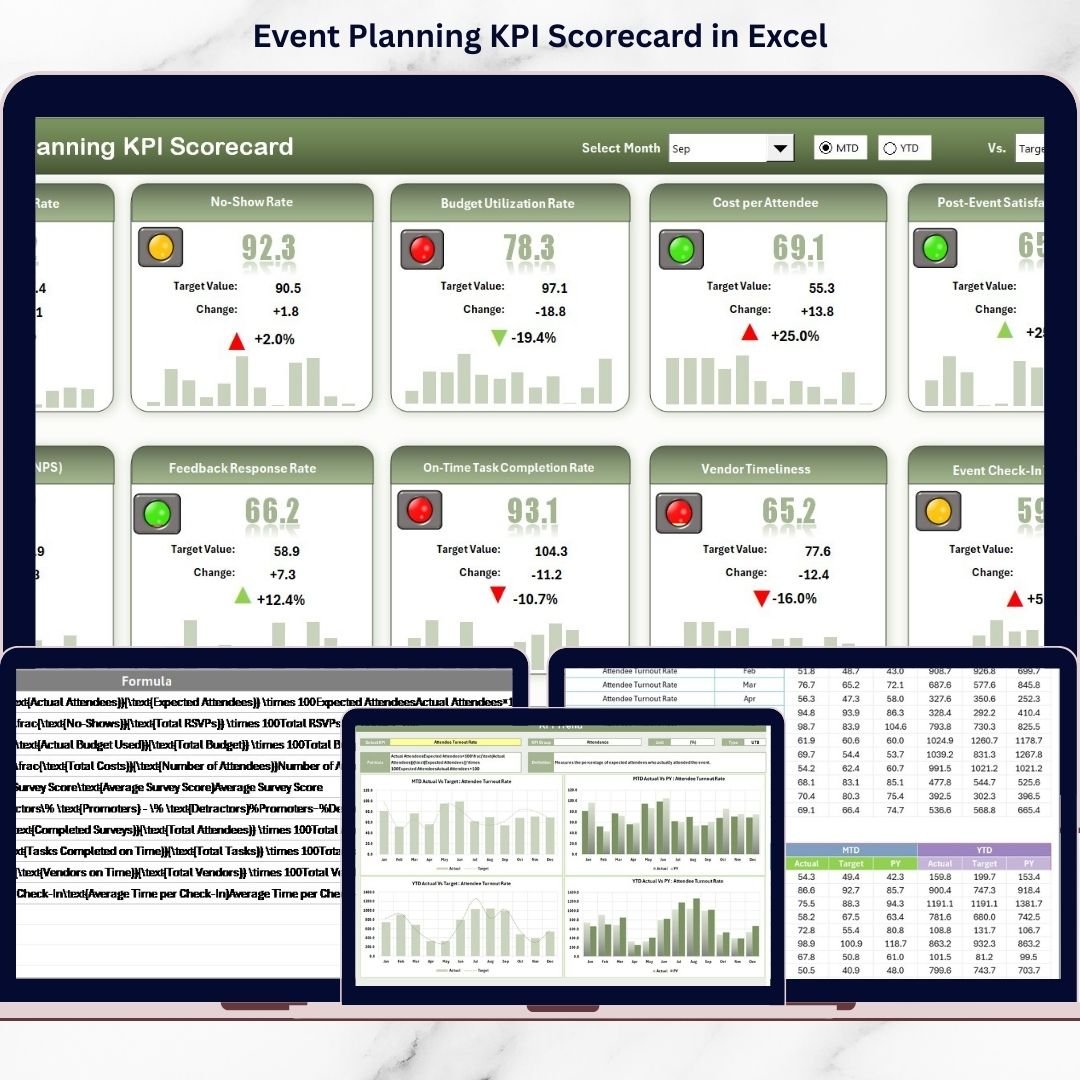
Event Planning KPI Scorecard in Excel
An event dashboard for revenue, attendance, marketing and vendor KPIs, with month to date and year to date tracking and actual versus target comparison.
Your next step: download the file, type your event date, and list the first ten tasks with an owner and the weeks before the event.
Frequently asked questions
What should an event planning template include?
A task checklist with owners and due dates, a budget with planned and actual amounts, and a timeline for the day of the event. The free template has all three, plus a status box that shows days left, progress and overdue tasks.
How do I make an event checklist in Excel?
List each task with an owner and the number of weeks before the event it is due. Then calculate the due date with =$B$6-C16*7, where B6 is the event date. Add a status drop-down and a flag formula.
How do I track an event budget in Excel?
Use one row per category with the budget and the amount spent so far. Calculate the remainder with =B6-C6 and flag a row with =IF(C6>B6,"Over budget","OK"). Update the spent column whenever you pay a deposit.
How many weeks before an event should I start planning?
It depends on the size. A small team event may need four to six weeks. A conference with speakers and a venue often needs 12 to 16 weeks. The sample uses 16 weeks for a 120 guest summit.
Does this event planning template work in Google Sheets?
Yes. Upload the file to Google Drive and open it with Google Sheets. COUNTIFS, the drop-downs, the time formulas and the conditional formatting all work there.
Free download
Event Planning Template (.xlsx, also opens in Google Sheets)
Working formulas, sample data and a How to use sheet. Opens in Excel, or import it into Google Sheets.
Want the finished version?
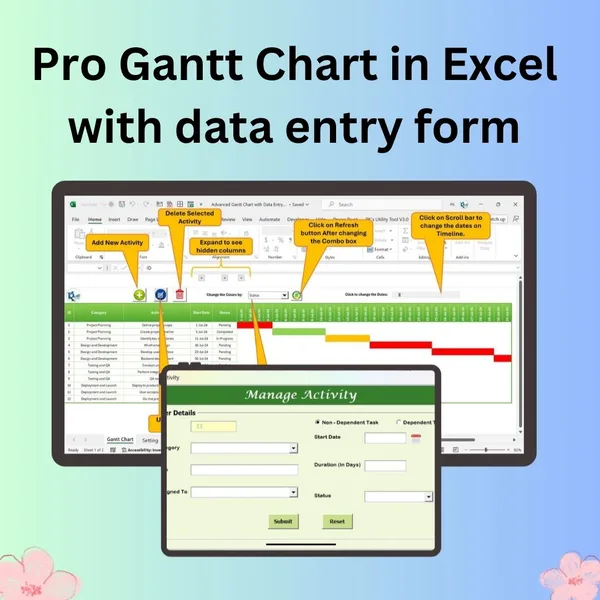
Pro Gantt Chart in Excel with Data Entry Form
Add and update activities through a form while the Gantt chart updates itself.
View the pro template
PK is the founder of PK: An Excel Expert and NextGenTemplates.com and a corporate trainer in Excel, VBA and Power BI. Since 2020 he and his team have built Excel and Google Sheets tutorials and templates for business users, including many project management tools.