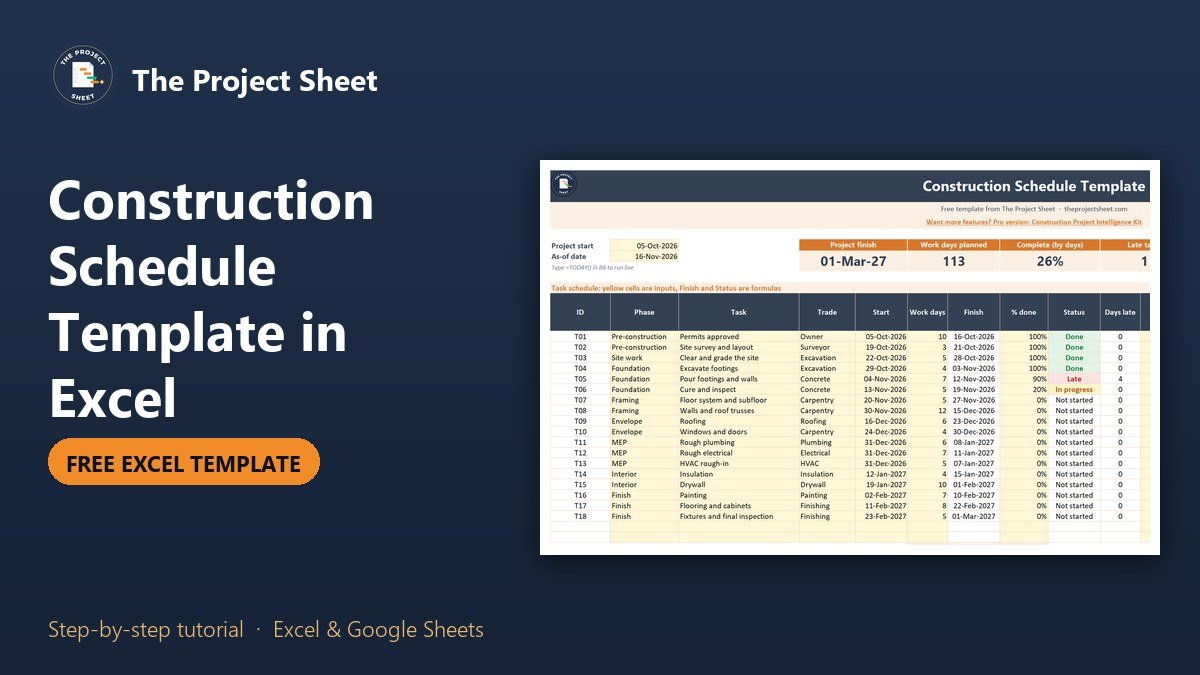
A construction schedule template in Excel lists every task of a build with a start date and the number of work days, then calculates each finish date, skips weekends and holidays, flags late work and draws a weekly Gantt bar. In the free template below, a made-up two-storey house build has 18 tasks and 113 work days, and it finishes on 1 March 2027.
Free download
Construction Schedule Template practice file (.xlsx)
Working formulas, sample data and a How to use sheet. Opens in Excel, or import it into Google Sheets.
What a construction schedule has to show
A construction schedule answers three questions every week. What is happening on site, who is doing it and what is slipping? A simple table of tasks with dates answers the first two. Formulas answer the third, because they compare today with every finish date and tell you which task is behind.
Construction adds one wrinkle that general project plans often miss. Crews do not work weekends or public holidays, so a five day task that starts on a Friday does not finish the following Friday by the calendar. This template counts work days only. If you want to learn the bar chart idea in detail, read how to make a Gantt chart in Excel.
What is inside the free construction schedule template
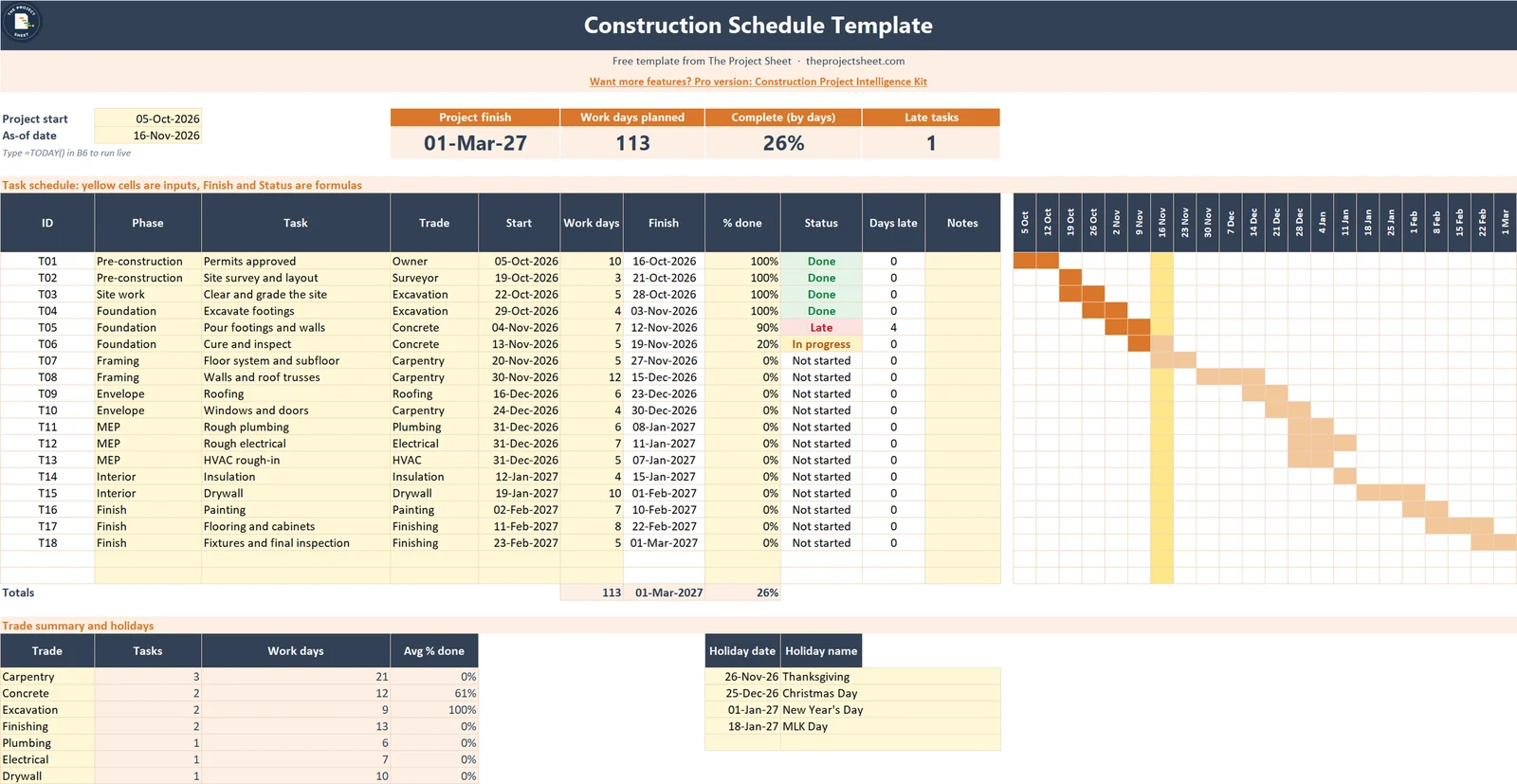
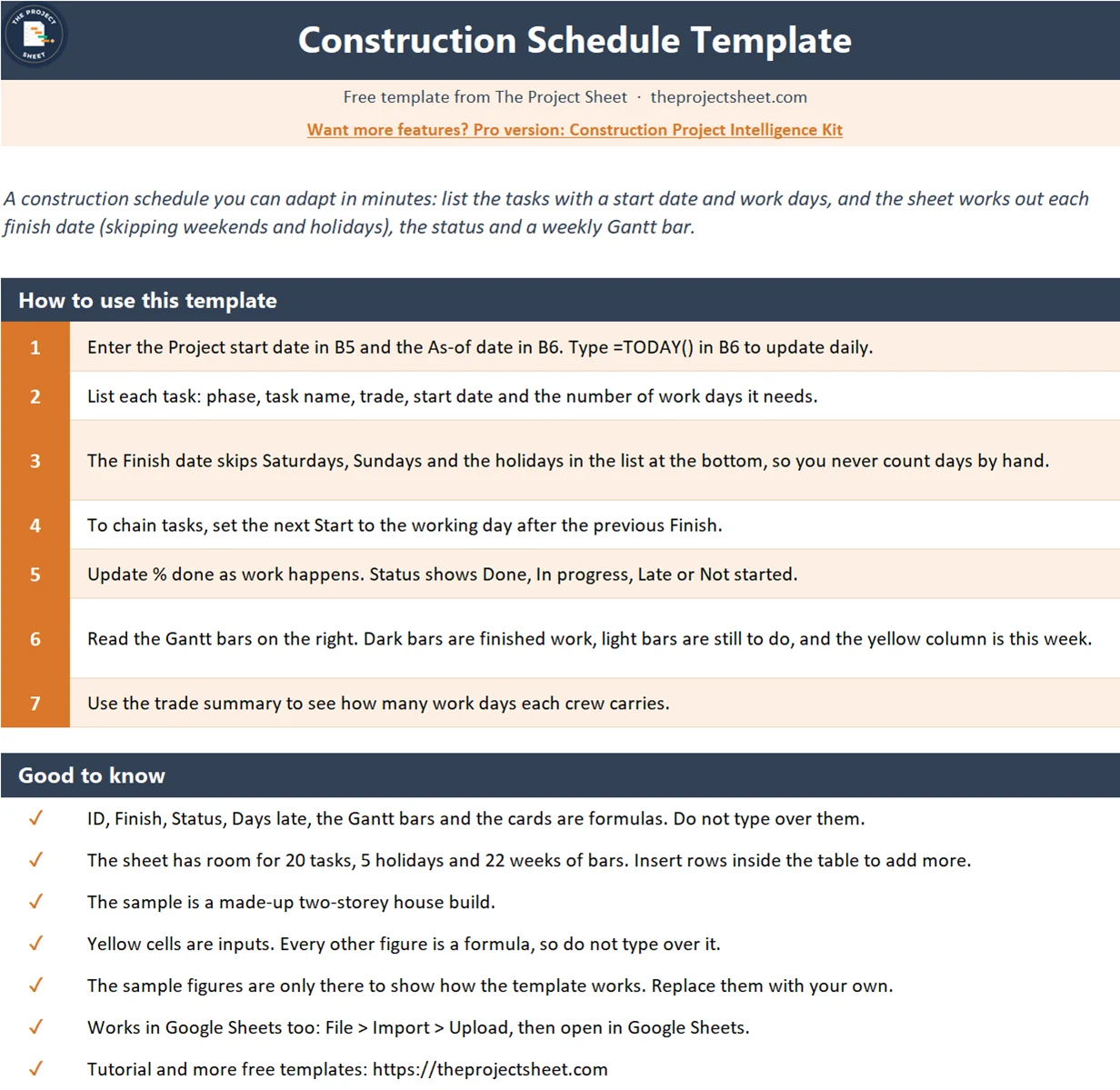
The workbook has a How to use sheet and one Schedule sheet. It has no macros and it opens in Google Sheets. Four cards at the top show the project finish date, total work days, percent complete and the number of late tasks. The task table holds up to 20 rows, the Gantt bars cover 22 weeks and a trade summary and holiday list sit underneath.
The sample data is made up. The project starts on 5 October 2026 and the as-of date is 16 November 2026. Change both in the yellow cells, or type =TODAY() in the as-of cell to run it live.
Who this template is for
- A small builder or remodeler who plans jobs in a spreadsheet instead of paid software.
- A homeowner who acts as the general contractor and has to line up trades.
- A project coordinator who needs a clear schedule to share with subcontractors.
This is a planning aid, not engineering or legal advice. Permits, inspections and contracts have their own rules, so always follow your local requirements.
How to build the construction schedule step by step
The inputs are the project start in B5 and the as-of date in B6. The task table starts in row 11. Column B holds the phase, C the task, D the trade, E the start date, F the work days and H the percent done.
Step 1: Calculate the finish date with WORKDAY
The WORKDAY function adds work days to a date and skips weekends. A third argument takes a list of holidays to skip as well. In G11:
=IF(OR(E11="",F11=""),"",WORKDAY(E11,F11-1,$H$35:$H$39))
The minus 1 matters. A task that starts on a Monday and takes 1 day also finishes on that Monday, so the finish is the start plus the work days minus one. The first task, Permits approved, starts on 5 October and takes 10 work days. The finish is 16 October 2026.
Step 2: Let holidays push the dates
The holiday list is in H35:H39. It holds Thanksgiving, Christmas Day, New Year’s Day and MLK Day. Look at task T07, Floor system and subfloor. It starts on Friday 20 November with 5 work days. The days counted are 20, 23, 24 and 25 November, then Thanksgiving on the 26th is skipped, and the fifth day is Friday 27 November. By the calendar that is 8 days, by the work calendar it is 5.
Step 3: Chain tasks one after another
In the sample every start date is typed in, which keeps the sheet simple and lets you move any task by hand. To start a task on the working day after another one finishes, put this in its start cell. For T02 in E12:
=WORKDAY(G11,1,$H$35:$H$39)
Tasks that run side by side, such as rough plumbing, rough electrical and HVAC rough-in, simply share the same start date. All three start on 31 December 2026 and finish on 8 January, 11 January and 7 January.
Step 4: Set the status
The status column reads the percent done, the start, the finish and the as-of date. In I11:
=IF(G11="","",IF(N(H11)>=1,"Done",IF(E11>$B$6,"Not started",IF(G11<$B$6,"Late","In progress"))))
A task at 100% is Done. A task that has not reached its start date is Not started. A task whose finish date has passed without 100% is Late. Everything else is In progress. T05, Pour footings and walls, finished on 12 November at 90%, so it shows Late.

Step 5: Count the days late
Days late is the as-of date minus the planned finish, and it is zero for finished tasks. In J11:
=IF(G11="","",IF(N(H11)>=1,0,MAX(0,$B$6-G11)))
T05 shows 4, because it was due on 12 November and the as-of date is 16 November. The MAX keeps tasks that are not due yet from showing a negative number.
Step 6: Draw the Gantt bars with conditional formatting
Each column from M onward is one week. The first header, M10, is the Monday of the project start week and every next header adds 7 days:
=$B$5-WEEKDAY($B$5,2)+1
Conditional formatting then colors a cell when the task overlaps that week. The rule is applied to M11:AH30:
=AND($E11<>"",$G11<>"",M$10<=$G11,M$10+6>=$E11)
A second rule with a darker color paints the part that is done, based on the percent complete. A third rule shades the current week in yellow, so you see at a glance where today sits on the timeline.
Step 7: Roll up the totals and the trades
The percent complete in H31 is weighted by work days, so a 12 day task counts more than a 3 day task:
=IF(F31=0,0,SUMPRODUCT(F11:F30,H11:H30)/F31)
On 16 November that gives 26% complete. The trade summary uses COUNTIF and SUMIF. Carpentry has 3 tasks and 21 work days, which is the heaviest load in the sample, so that is the crew to book early.
Common mistakes
- Counting calendar days. Crews do not work weekends, so use WORKDAY instead of start plus days.
- Forgetting holidays. Add every local holiday and shutdown to the list, or the finish dates will be too early.
- Leaving out inspections. Curing, inspections and deliveries take time. Give them their own rows.
- Never updating percent done. The schedule is only as honest as the progress column.
- Chaining everything. Many trades can overlap. Let independent work share a start date.
- Ignoring weather. Outdoor tasks slip. Pad the days or add a buffer task before the roof goes on.
Adapt the template to your project
Replace the sample tasks, trades and dates with your own. Break big jobs into smaller tasks using the work breakdown structure template. If you need a lighter plan for a smaller job, the project schedule template uses the same idea with fewer columns. For more than 20 tasks, insert rows inside the table and copy the formulas down.
Want more than the free file?
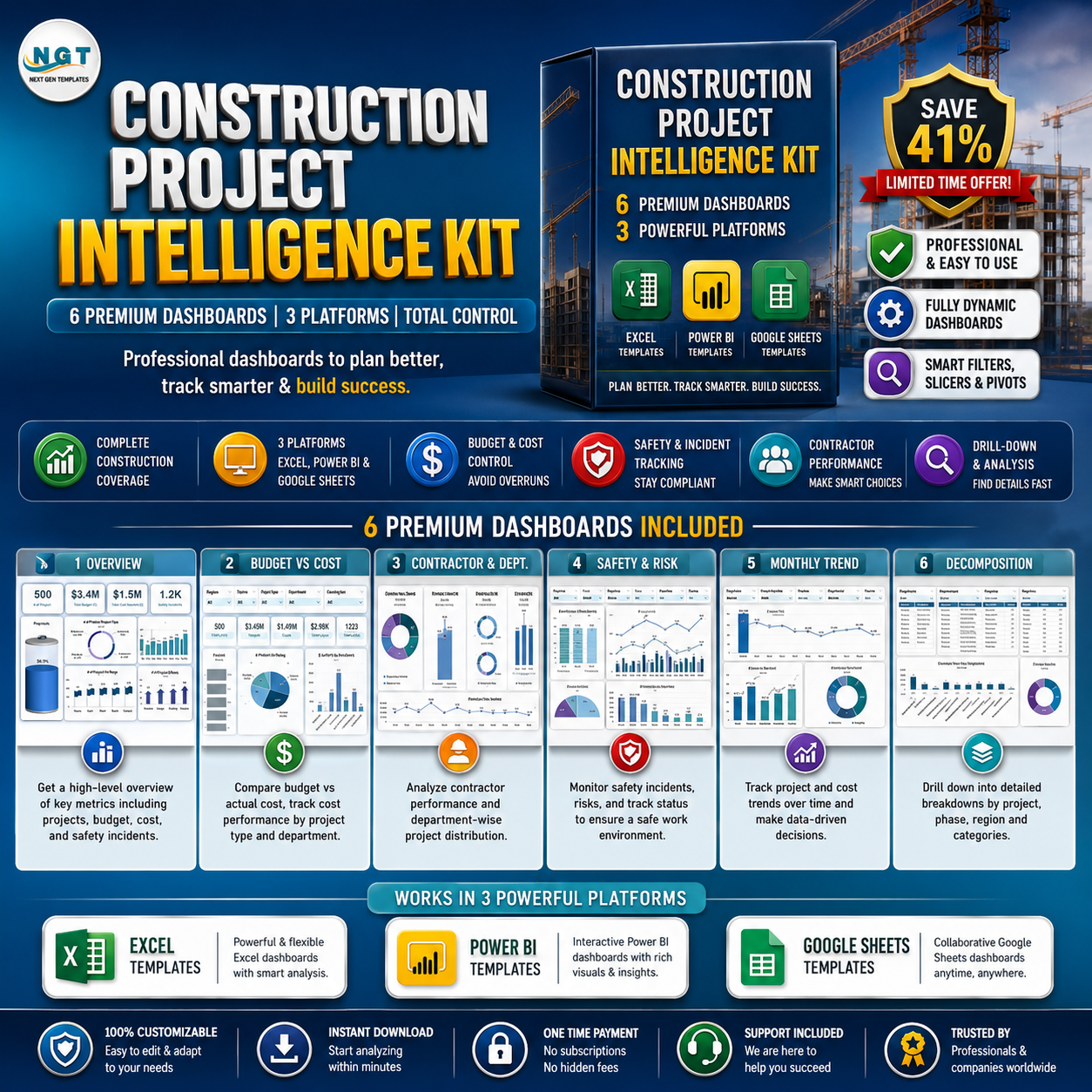
Construction Project Intelligence Kit
Six construction dashboards in one pack for Excel, Power BI and Google Sheets, covering portfolio, KPIs and safety tracking.
Your next step: download the file, enter your own start date and trades, and check which task finishes last.
Frequently asked questions
How do you make a construction schedule in Excel?
List each task with a start date and the number of work days, calculate the finish date with the WORKDAY function and a holiday list, then add a status column and Gantt bars with conditional formatting.
How do you skip weekends and holidays in an Excel schedule?
Use WORKDAY(start, days-1, holidays). It adds work days to the start date, skips Saturdays and Sundays and also skips any dates in the holiday range you give it.
What is the difference between a construction schedule and a Gantt chart?
The schedule is the table of tasks, dates and durations. The Gantt chart is the bar view of that table, drawn week by week so you can see overlaps and delays.
How do I show late tasks in an Excel schedule?
Compare the planned finish date with the as-of date and the percent done. If the finish has passed and the task is below 100%, return Late and color it red with conditional formatting.
Does this construction schedule template work in Google Sheets?
Yes. Upload the file to Google Drive and open it with Google Sheets. The WORKDAY formulas, drop-downs and conditional formats work there.
Free download
Construction Schedule Template practice file (.xlsx)
Working formulas, sample data and a How to use sheet. Opens in Excel, or import it into Google Sheets.
Want the finished version?
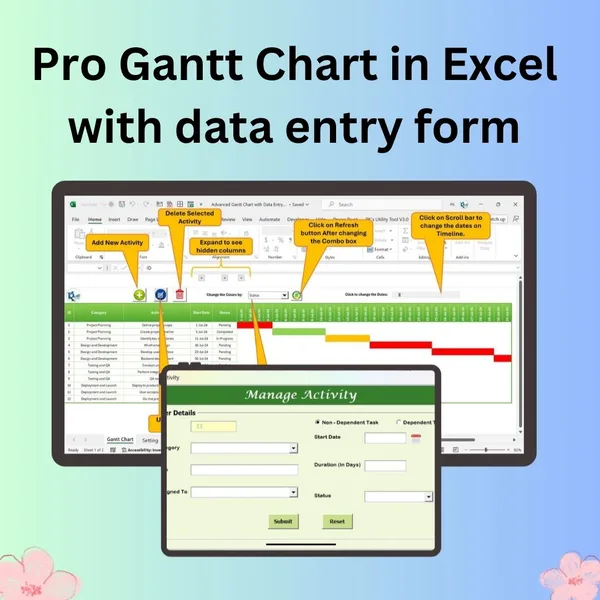
Pro Gantt Chart in Excel with Data Entry Form
Add and update activities through a form while the Gantt chart updates itself.
View the pro template
PK is the founder of PK: An Excel Expert and NextGenTemplates.com and a corporate trainer in Excel, VBA and Power BI. Since 2020 he and his team have built Excel and Google Sheets tutorials and templates for business users, including many project management tools.