
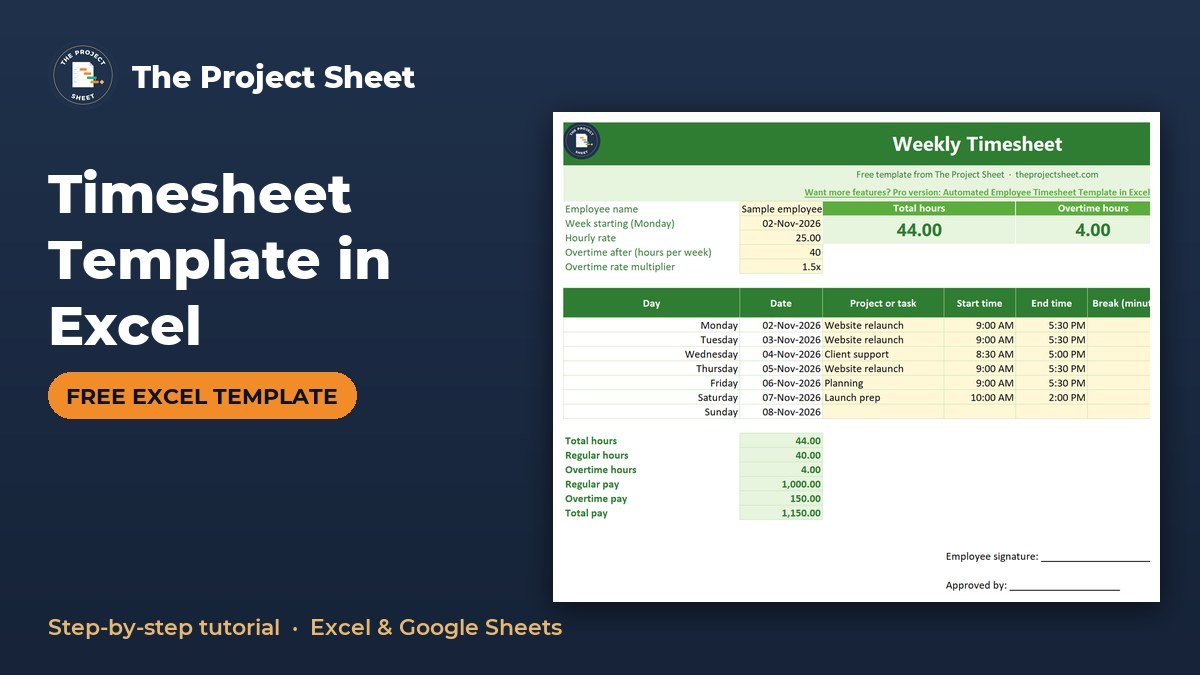
A timesheet template in Excel records start time, end time and break minutes for each day, then uses one formula to turn them into hours worked, overtime and pay. You enter times in columns D to F, and column G calculates the hours automatically, including shifts that cross midnight. The free weekly timesheet template is below.
Free download
Weekly Timesheet Template (Excel)
Working formulas, sample data and a How to use sheet. Opens in Excel, or import it into Google Sheets.
What this weekly timesheet template does
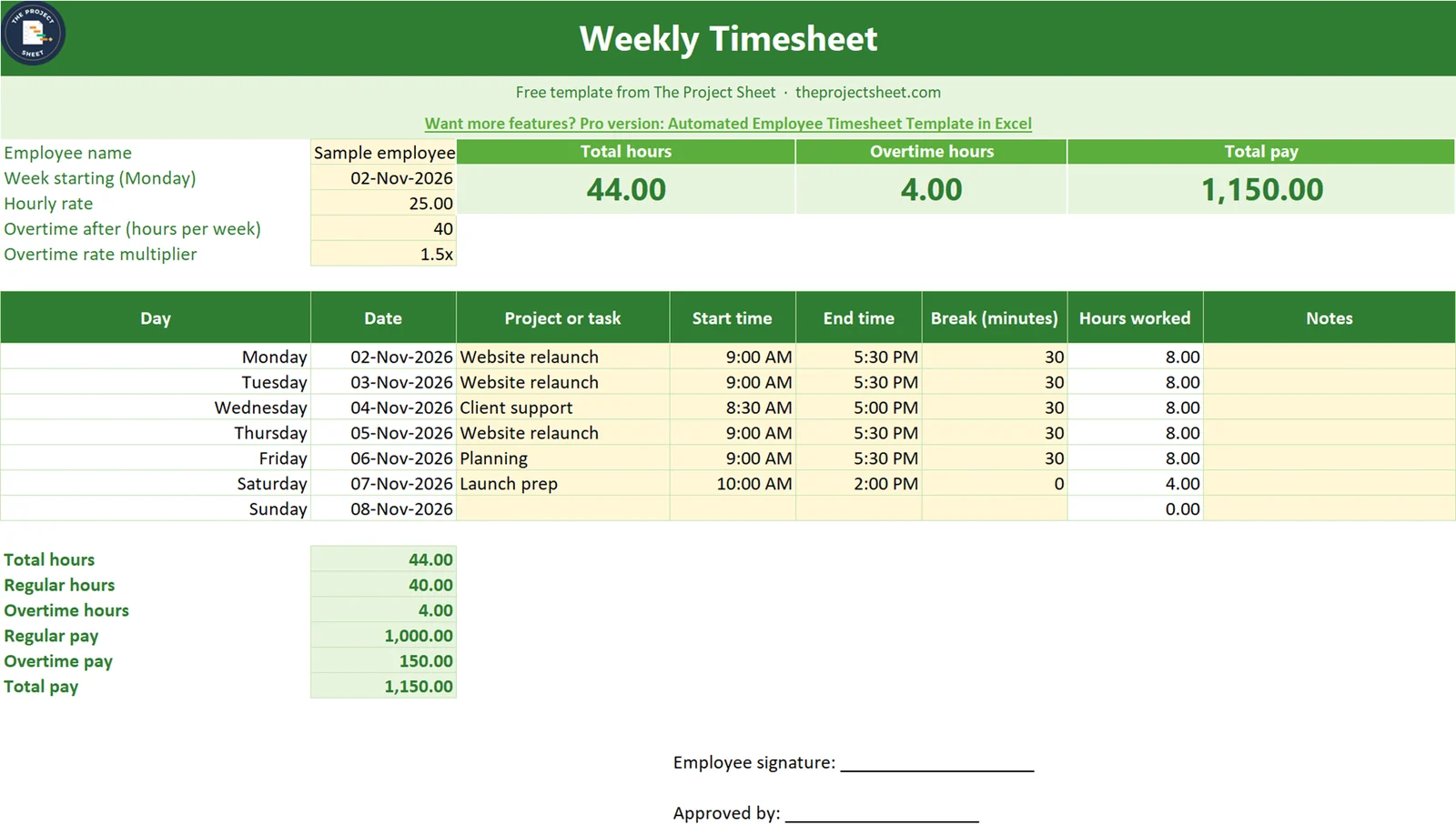
The workbook has two sheets: How to use and Timesheet. The Timesheet sheet covers one week, Monday to Sunday, for one person. You type the times, and it works out daily hours, total hours, regular hours, overtime hours and pay.
It suits freelancers who bill by the hour, team leads who collect hours from a small team, and project managers who need a simple record of time spent per task. There are signature lines for the employee and the approver, so you can print the sheet and sign it if your process needs that.
The inputs sit at the top (name, week start, rate, overtime threshold and multiplier), the daily entries sit in the middle, and the totals sit underneath. Because every figure that can change lives in its own cell, you can reuse the same file week after week without touching a formula.
Overtime rules vary by country and contract. The template uses a simple rule (overtime after a set number of hours per week, paid at a multiplier), so check it against your own agreement before you rely on it for payroll.
How to build the timesheet step by step
You can download the file and skip the build, or follow these steps to make your own. The cell addresses match the template, so you can compare your version with the download at any point.
Step 1: Set up the input cells
On a sheet named Timesheet, enter these labels in column A and the values in column B:
- B4: employee name
- B5: week starting (Monday), for example 02-Nov-2026
- B6: hourly rate, for example 25
- B7: overtime after (hours per week), for example 40
- B8: overtime multiplier, for example 1.5
Keeping the rate, threshold and multiplier in their own cells means you never edit a formula when the terms change. It also makes the sheet easy to check, because anyone can see the assumptions at a glance.
Step 2: Create the day rows
Use rows 11 to 17 for the seven days. In B11 enter =$B$5. In B12 enter =B11+1 and fill down to B17. Format column B as a date.
In A11 enter =B11 and apply the custom format dddd so it shows the day name. Fill that down to A17. Change B5 and the whole week updates, so you only type one date per week.
Enter the Monday date in B5. If you type a different weekday, the rows still work, but the day names will no longer start on Monday.
Step 3: Add the entry columns
Add these headers in row 10 and leave the cells below as inputs:
- C: project or task
- D: start time
- E: end time
- F: break minutes
- H: notes
Format D and E as time (for example 9:00 AM). Enter break minutes in F as a plain number such as 30. Column G is left for the formula in the next step.
Step 4: Calculate hours worked in Excel
In G11 enter this Excel timesheet formula and fill it down to G17:
=IF(OR(D11="",E11=""),0,MAX(0,MOD(E11-D11,1)*24-N(F11)/60))
Here is why it works. Excel stores times as fractions of a day, so (end-start)*24 gives hours. MOD(...,1) handles shifts that cross midnight, so 10:00 PM to 6:00 AM returns 8 hours instead of a negative number. Break minutes are divided by 60 to convert them to hours, and N(F11) treats an empty break cell as zero.
The IF(OR(...)) wrapper returns 0 for days with no start or end time, so days off stay blank without errors. MAX(0,...) stops the result from going below zero if a break is longer than the shift.
This is the core of any approach to calculate hours worked in Excel. Once it is in place, the rest of the sheet is simple addition and comparison.
Step 5: Build the totals and overtime calculator
Enter these formulas in column B, rows 19 to 24:
| Cell | Label | Formula |
|---|---|---|
| B19 | Total hours | =SUM(G11:G17) |
| B20 | Regular hours | =MIN(B19,B7) |
| B21 | Overtime hours | =MAX(0,B19-B7) |
| B22 | Regular pay | =B20*B6 |
| B23 | Overtime pay | =B21*B6*B8 |
| B24 | Total pay | =B22+B23 |
This is a compact overtime calculator in Excel. Regular hours are capped at the threshold in B7, and anything above it is paid at the rate times the multiplier. Because MIN and MAX split the hours cleanly, regular and overtime hours always add up to the total in B19.
Step 6: Format and add signature lines
Format G and B19:B21 as numbers with two decimals, and B22:B24 as currency or numbers with two decimals. Add two lines under the totals for the employee and the approver. Shade the input cells (B4:B8 and C11:F17) so people know where to type.
If you plan to share the file, consider protecting the formula cells so nobody overwrites them by accident. Leave the shaded input cells unlocked.
Worked example with the sample week
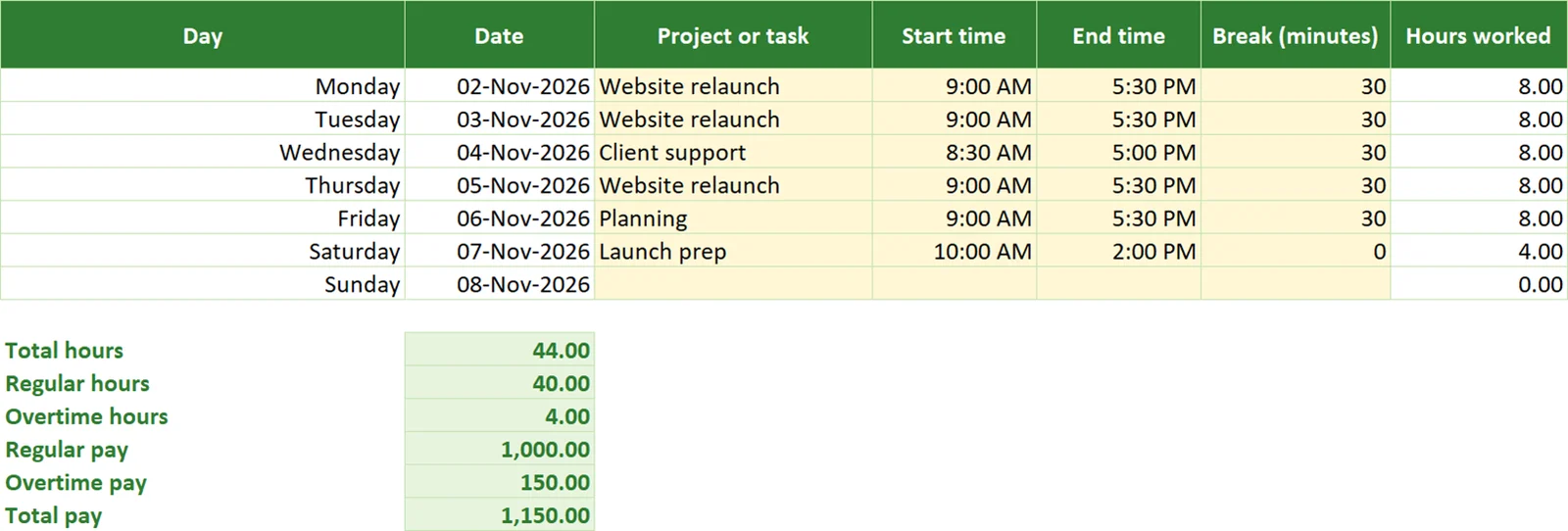
The template opens with a sample week starting 02-Nov-2026, an hourly rate of 25, overtime after 40 hours and a multiplier of 1.5.
| Day | Start | End | Break | Hours |
|---|---|---|---|---|
| Monday | 9:00 AM | 5:30 PM | 30 min | 8.00 |
| Tuesday | 9:00 AM | 5:30 PM | 30 min | 8.00 |
| Wednesday | 8:30 AM | 5:00 PM | none | 8.00 |
| Thursday | 9:00 AM | 5:30 PM | 30 min | 8.00 |
| Friday | 9:00 AM | 5:30 PM | 30 min | 8.00 |
| Saturday | 10:00 AM | 2:00 PM | none | 4.00 |
Take Monday. From 9:00 AM to 5:30 PM is 8.5 hours, and the 30-minute break takes off 0.5, which leaves 8.00 in G11. Wednesday has no break, so 8:30 AM to 5:00 PM is 8.00 straight away. Saturday runs four hours with no break.
Total hours in B19 is 44.00. Regular hours in B20 is 40 and overtime in B21 is 4. Regular pay in B22 is 1,000.00 (40 x 25). Overtime pay in B23 is 150.00 (4 x 25 x 1.5). Total pay in B24 is 1,150.00.
Try changing B7 to 45 and watch the sheet respond: overtime drops to zero and all 44 hours are paid at the regular rate. That quick test is a good way to confirm your own copy behaves correctly.
How to adapt the template
- Different overtime rule: change B7 and B8. A 37.5-hour week or a 2.0 multiplier needs no formula edits.
- Split shifts: add a second set of start, end and break columns and add both results in column G.
- Several people: copy the Timesheet sheet once per person and rename each tab.
- Project tracking: use column C consistently, then build a summary with SUMIF on task names.
- Weekly archive: save a copy each week with the date in the file name.
- Different pay rates by task: add a rate column next to C and multiply each day’s hours by its own rate before totaling.
If you track time against project work, pair this with a project management template in Excel so hours and task status sit side by side. For planning the work itself, see how to make a Gantt chart in Excel.
Common mistakes
- Typing times as text. If 9:00 is left-aligned, Excel may be reading it as text. Retype it or format the cell as time.
- Entering breaks as hours. Column F expects minutes. Type 30, not 0.5.
- Subtracting without MOD. A plain
E11-D11goes negative on overnight shifts. - Forgetting the *24. Without it, the result is a fraction of a day, not hours.
- Hardcoding the rate in formulas. Keep it in B6 so one change updates every total.
- Applying the wrong overtime rule. Some contracts count overtime per day, not per week. This template counts per week.
- Overwriting formulas. Typing a number into column G replaces the formula for that day. Enter times in D and E instead.
- Leaving B5 on an old date. If the week does not roll forward, every date and day name stays on the previous week.
Excel vs Google Sheets notes
The formulas use only IF, OR, MAX, MOD, N, SUM and MIN, so they work in both programs. Here are the small differences.
| Item | Excel | Google Sheets |
|---|---|---|
| Day name format | Custom format dddd |
Same custom format works |
| Time entry | Type 9:00 AM | Type 9:00 AM |
| Hours formula | Works as written | Works as written |
| Sharing | Save and send the file | Share a link |
If you upload the Excel file to Google Sheets, check that the date and time cells kept their formats. Google Sheets is handy when several people fill in their own tabs, while Excel suits a single file that is printed and signed.
Keep it consistent across projects
Time records often feed into other project documents. A RACI chart shows who owns which work, and a RAID log tracks risks like overruns. You can find more in the free templates page.
If you want more automation, the Automated Employee Timesheet Template in Excel is a paid option.
Next step: download the file, replace the sample times with your own week, and confirm that B7 and B8 match your overtime terms. New to the site? The start here guide shows where to go next.
Frequently asked questions
How do I calculate hours worked in Excel?
Subtract the start time from the end time and multiply by 24, because Excel stores times as fractions of a day. The template uses MOD(E11-D11,1)*24 and subtracts break minutes divided by 60. The MOD part makes overnight shifts work.
What is the Excel timesheet formula for overnight shifts?
Use MOD(end-start,1)*24. For a shift from 10:00 PM to 6:00 AM, this returns 8 hours instead of a negative value. The full template formula also handles breaks and blank rows.
How do I calculate overtime in Excel?
Put the weekly overtime threshold in a cell, such as B7, then use =MAX(0,B19-B7) for overtime hours and =MIN(B19,B7) for regular hours. Multiply overtime hours by the rate and multiplier for overtime pay. Check your local rules, as they vary by country and contract.
Can I use this weekly timesheet template in Google Sheets?
Yes. The formulas use standard functions that work in Google Sheets as well as Excel. After uploading, check that the date and time cells kept their formats.
Why does my timesheet show a negative or strange number?
The usual causes are times typed as text, a missing *24 in the formula, or an overnight shift without MOD. Format the start and end cells as time and use the template formula in column G.
Free download
Weekly Timesheet Template (Excel)
Working formulas, sample data and a How to use sheet. Opens in Excel, or import it into Google Sheets.
Want the finished version?
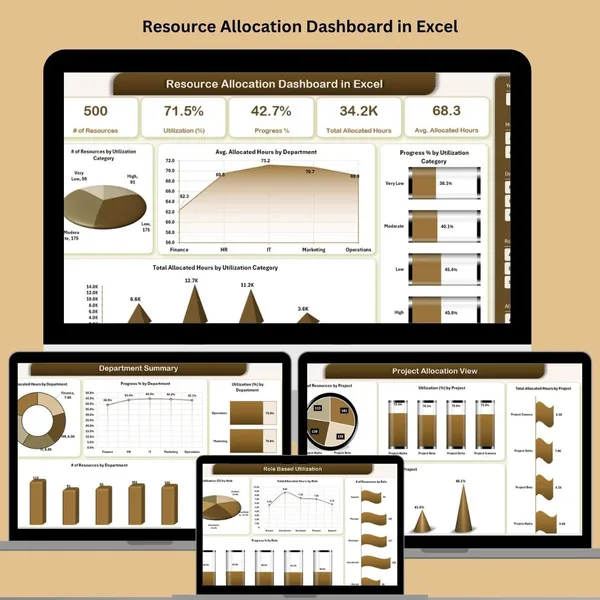
Resource Allocation Dashboard in Excel
Balance workloads and track utilisation across teams and projects.
View the pro template
PK is the founder of PK: An Excel Expert and NextGenTemplates.com and a corporate trainer in Excel, VBA and Power BI. Since 2020 he and his team have built Excel and Google Sheets tutorials and templates for business users, including many project management tools.