
A change request template is a log that records every request to change a project’s scope, schedule or cost, with its impact and its decision. To build one in Excel, give each request a number, a date, a type, the days and cost it adds, and a status picked from a list, then add formulas that count the days open and flag the ones that wait too long. The free template below does this and sums up the approved impact.
Free download
Change Request Template practice file (.xlsx)
Working formulas, sample data and a How to use sheet. Opens in Excel, or import it into Google Sheets.
Why projects need a change request log
Scope rarely stays still. A client asks for one more report, a regulator changes a rule, a supplier slips. Each request seems small. Added together they push the date and the budget, and nobody can say when or why. A change request log fixes that. It turns a conversation in the hallway into a record with an owner, an impact and a decision.
The log also protects the team. When the sponsor asks why the project is two weeks late, you can point to the approved requests and their days. That is a better conversation than a debate about memory.
What is inside the free change request template
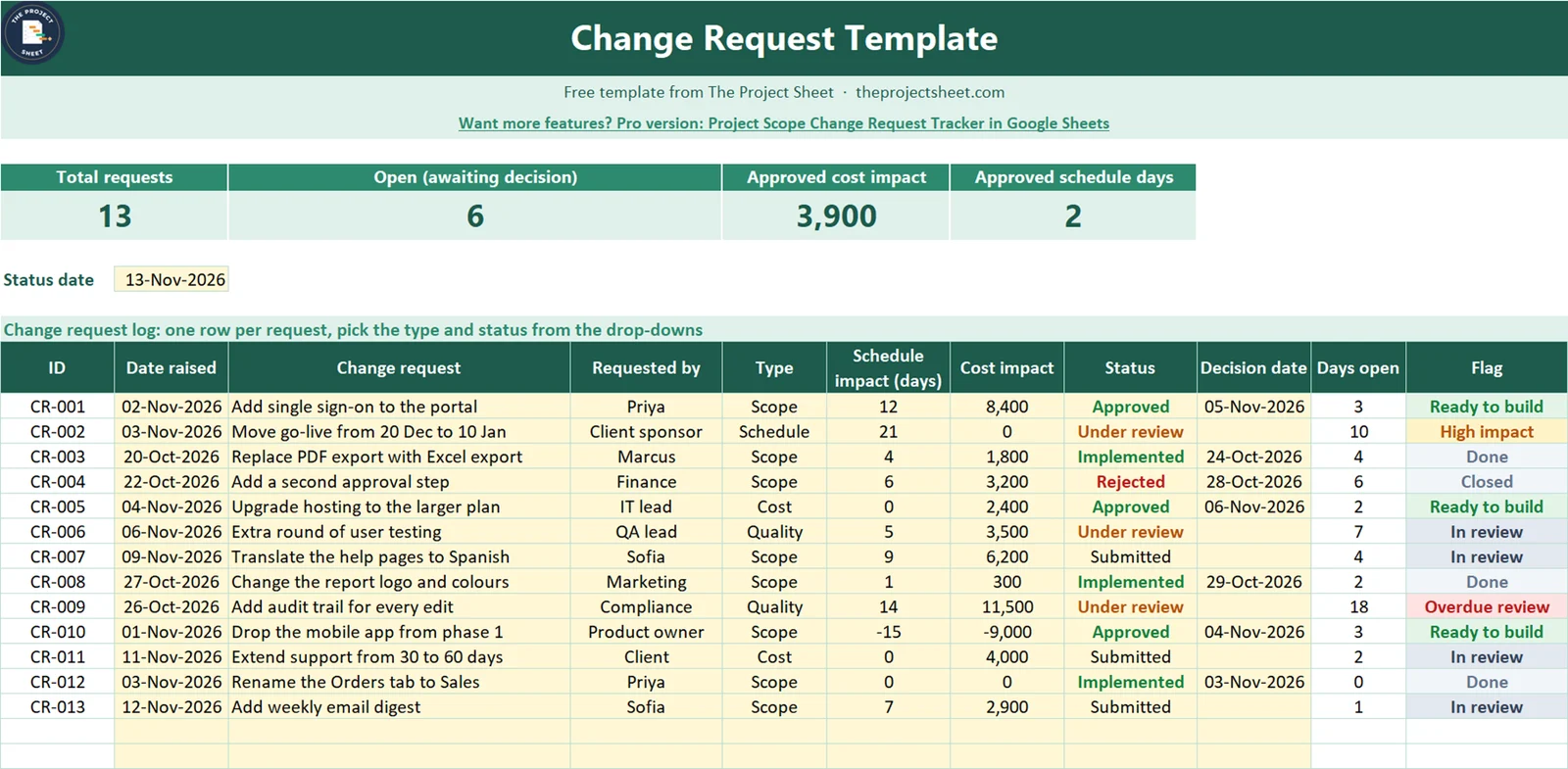
The workbook has two sheets: How to use and Change Requests. The log sheet has four summary cards, a status date and a table for 20 requests. It has no macros and works in Google Sheets too. Yellow cells are inputs and everything else is a formula.
The sample is a made-up software project with 13 requests and a status date of 13 November 2026. Six requests are still waiting for a decision. The approved and implemented requests add 3,900 in cost and 2 days of schedule, because one approved change drops a mobile app and saves 15 days and 9,000.
Who this change request template is for
- A project manager who needs a simple log before choosing a project tool.
- A team lead who agrees on extras with a client and wants them written down.
- A freelancer or agency that needs to show why a deadline or price moved.
How to build the change request template in Excel
The table starts at row 12 with the headers ID, Date raised, Change request, Requested by, Type, Schedule impact, Cost impact, Status, Decision date, Days open and Flag. Requests run from row 13 to row 32. The formulas below show row 13, so copy them down.
Step 1: Set up the columns and the drop-downs
Type the headers in row 12. Select the Type column and add data validation with the list Scope, Schedule, Cost, Quality. Select the Status column and add the list Submitted, Under review, Approved, Rejected, Implemented. A fixed list keeps the counts honest, because a typo like Aproved would otherwise fall out of every total.
Step 2: Number every request automatically
The ID should never be typed by hand. In A13:
=IF(C13="","","CR-"&TEXT(ROW()-12,"000"))
The formula takes the row number, subtracts 12 and formats it with three digits, so the first request is CR-001. It stays empty until you type a request title, so empty rows look clean.
Step 3: Add the status date
Put the date the sheet should treat as today in B9. The sample uses a typed date, 13 November 2026, so the snapshots stay stable. Enter =TODAY() to update the sheet every day.
Step 4: Count the days open
How long a request has waited is the number that exposes a slow approval process. In J13:
=IF(OR(C13="",B13=""),"",IF(OR(H13="Approved",H13="Rejected",H13="Implemented"),IF(I13="","",I13-B13),$B$9-B13))
For a request that still waits, the formula subtracts the date raised from the status date. For a closed one, it subtracts the date raised from the decision date, so the number becomes the time it took to decide. CR-002 has waited 10 days. CR-001 took 3 days to be approved.
Step 5: Set the flag
The flag turns the numbers into a word you can scan. In K13:
=IF(C13="","",IF(H13="Implemented","Done",IF(H13="Rejected","Closed",IF(H13="Approved","Ready to build",IF(B13="","No date",IF($B$9-B13>14,"Overdue review",IF(OR(F13>=10,G13>=10000),"High impact","In review")))))))
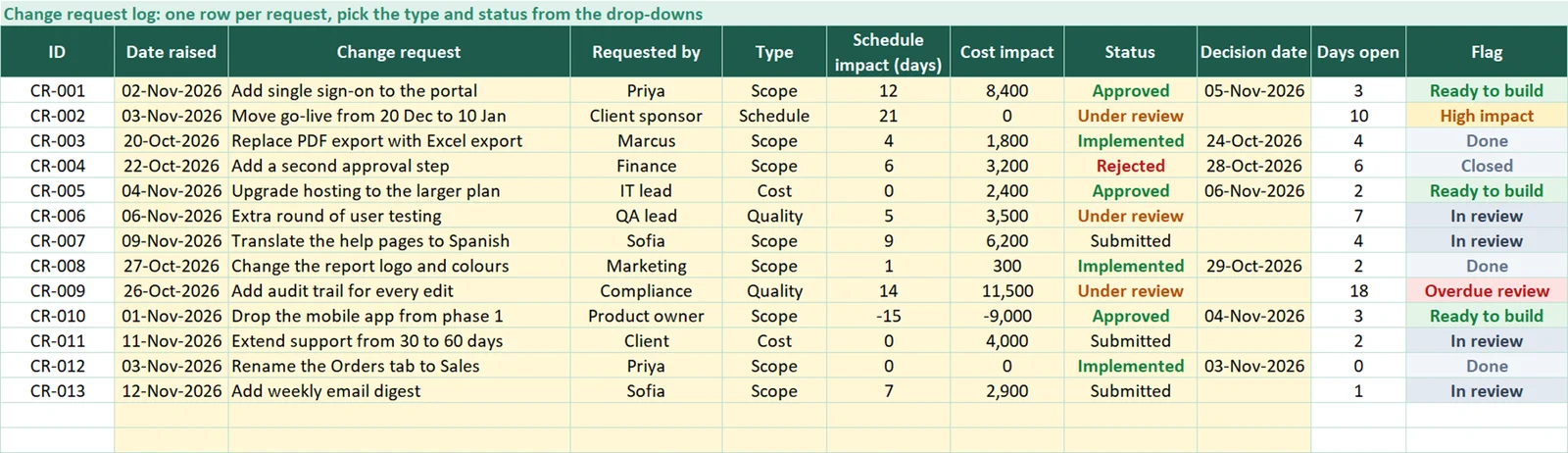
The tests run in order. Implemented and Rejected requests are finished, so they come first and are never flagged as late. Approved means ready to build. For open requests, more than 14 days waiting means Overdue review. Then a request of 10 or more days, or 10,000 or more in cost, is marked High impact so that the right people look at it. Everything else is In review.
Step 6: Colour the flag and the status
Select the Flag column and add conditional formatting rules that compare each cell with the words above. Overdue review gets a red fill, High impact amber, Ready to build green and the finished rows grey. Colour the Status column the same way, with Approved and Implemented in green, Rejected in red and Under review in amber. Open the sheet on Monday and the problems are already coloured.
Step 7: Build the summary cards
The cards count the log. The four formulas are:
=COUNTA(C13:C32)
=COUNTIF(H13:H32,"Submitted")+COUNTIF(H13:H32,"Under review")
=SUMIFS(G13:G32,H13:H32,"Approved")+SUMIFS(G13:G32,H13:H32,"Implemented")
=SUMIFS(F13:F32,H13:H32,"Approved")+SUMIFS(F13:F32,H13:H32,"Implemented")
With 13 requests, the cards show 13 total and 6 open. The approved cost is 3,900 and the approved schedule impact is 2 days. Both come from SUMIFS, which adds the impact only where the status is Approved or Implemented. That matters because a request that was rejected, or is still waiting, has not changed the project.
The totals are small because the sample has a saving in it. Approved requests add 12 + 4 + 0 + 1 + 0 days and save 15, which leaves 2. Use a negative number whenever a change removes work, so the total tells the truth.
How to run the log every week
Review the log in your weekly project meeting. Start with the red rows, because an Overdue review means a person is waiting for an answer. Then look at High impact requests, which need a decision from the sponsor and not from the team. Finally, move Approved requests to Implemented once the work is done, and enter the date.
Write the schedule and cost impact before the decision, not after. A request with no impact figures cannot be judged. If nobody knows the impact, the first action on that row is to find out. That one rule makes the decision meeting shorter.
For the matching risk side of the project, use the RAID log template. To track the problems that appear along the way, use the issue log template. To see the approved changes in the schedule, open the project schedule template. Need a version with approval workflow and charts? The Project Scope Change Request Tracker in Google Sheets covers that.
Common mistakes
- Taking requests by email only. If it is not in the log, it does not exist. Add every request, even the ones you expect to refuse.
- Leaving the impact blank. Without days and cost, the sponsor has nothing to decide on.
- Typing the status by hand. Use the drop-down so every total and flag works.
- Forgetting the decision date. Without it, Days open cannot show how long a decision took.
- Counting rejected requests in the impact. Only Approved and Implemented requests change the project.
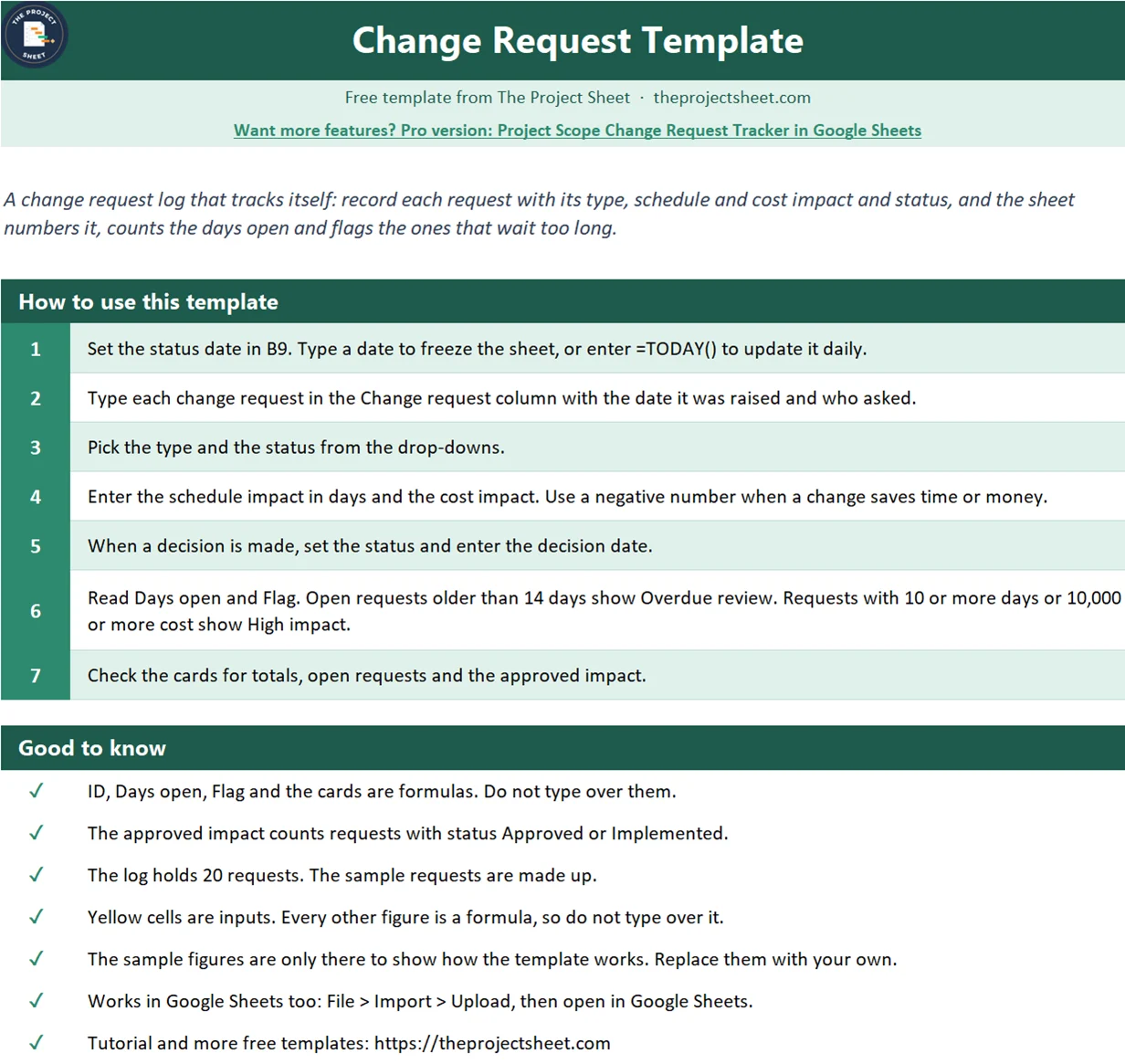
- Overwriting the formulas. ID, Days open and Flag are formulas. Change the dates and the status instead.
Where to go from here
A change request log works best next to a plan. Start with the project plan template for phases and owners, then use this log to control what changes. For a full view of status, use the project status report template. New to the site? Read start here.
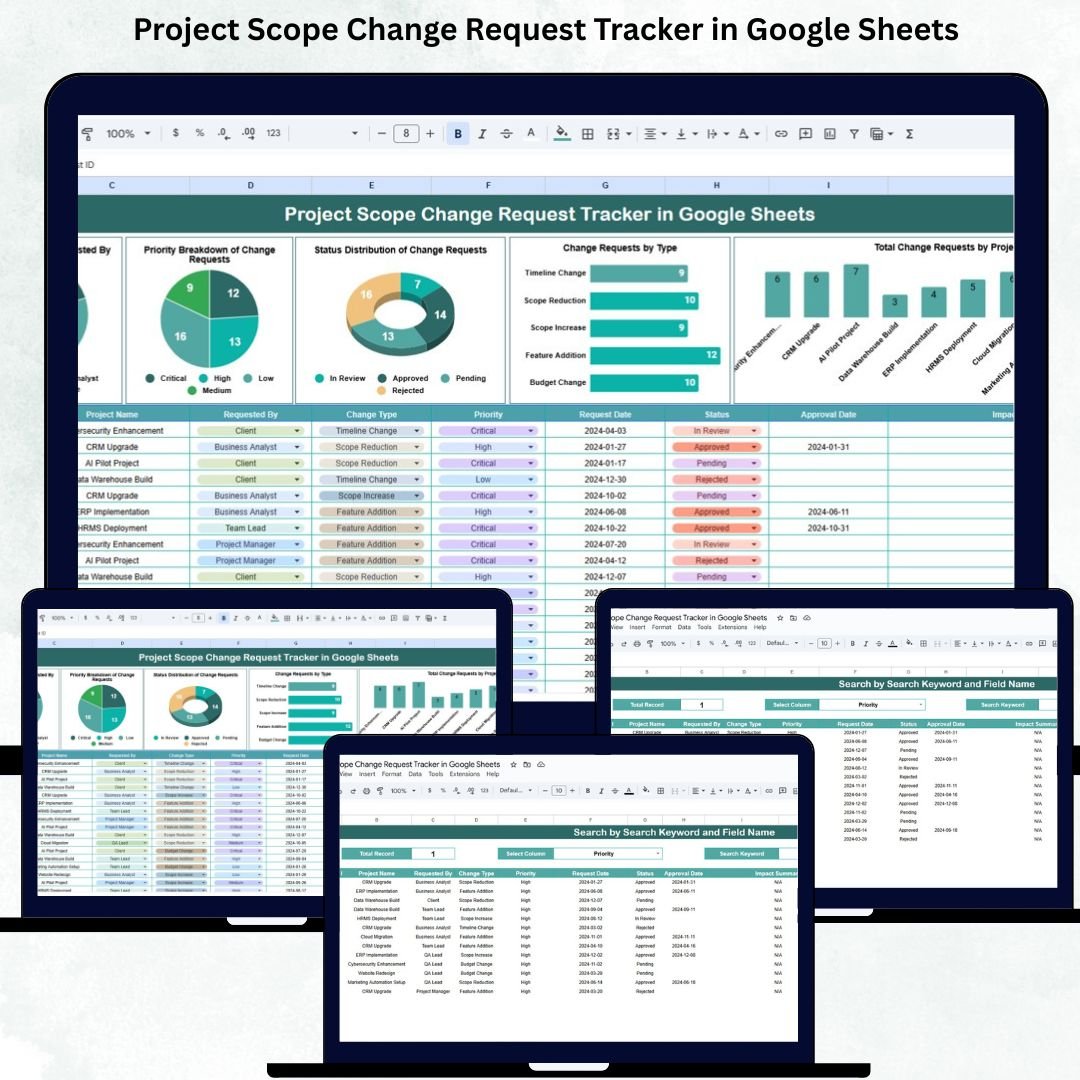
Want more than the free file?
Project Scope Change Request Tracker in Google Sheets
A tracker for scope change requests with approval status, impact and a clear history for every project.
Your next step: download the file, clear the sample requests and log the last change someone asked for on your project. Fill in the days and cost, then set a status.
Frequently asked questions
What is a change request template?
A change request template is a form or log that records each request to change a project, with the reason, the impact on schedule and cost, and the decision. It keeps changes visible and approved.
What should a change request log include?
At minimum: an ID, the date raised, a description, who asked, the type, the impact on time and cost, the status and the decision date. This template also counts days open and flags slow requests.
How do you track change requests in Excel?
Create a table with one row per request, use drop-downs for type and status, and add formulas for the days open and a flag. Use SUMIFS to add up the impact of approved requests.
Who approves a change request?
It depends on the project. Small changes can be approved by the project manager, while changes that move the budget or the deadline usually need the sponsor or a change board.
Does this change request template work in Google Sheets?
Yes. Upload the file to Google Drive and open it with Google Sheets. The formulas, drop-downs and conditional formats all work there.
Free download
Change Request Template practice file (.xlsx)
Working formulas, sample data and a How to use sheet. Opens in Excel, or import it into Google Sheets.
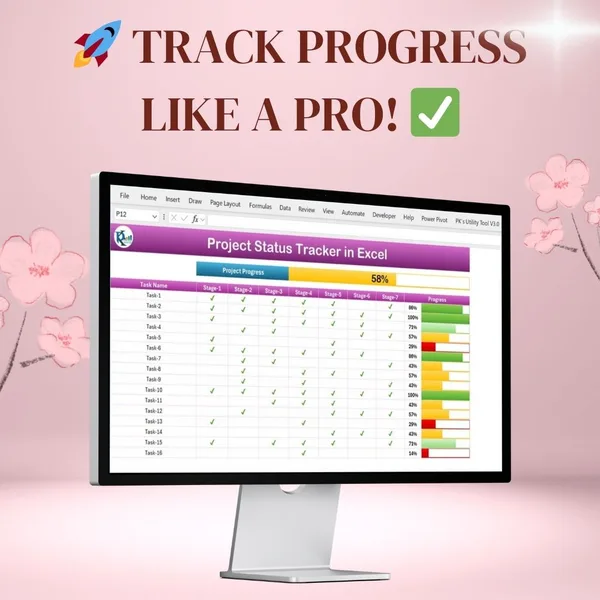
Want the finished version?
Project Progress Tracker in Excel
Colour-coded progress bars and automatic completion percentages.
View the pro template
PK is the founder of PK: An Excel Expert and NextGenTemplates.com and a corporate trainer in Excel, VBA and Power BI. Since 2020 he and his team have built Excel and Google Sheets tutorials and templates for business users, including many project management tools.